Plan and billing
See your plan and usage, buy, renew or switch plans online, and download GST tax invoices.
Open Administration > Plan & billing to see your subscription, how much of your allowance you have used, and what each plan includes. You need the settings permission to see this page, and the manage settings permission to buy, renew or download invoices. Usually that means the owner.
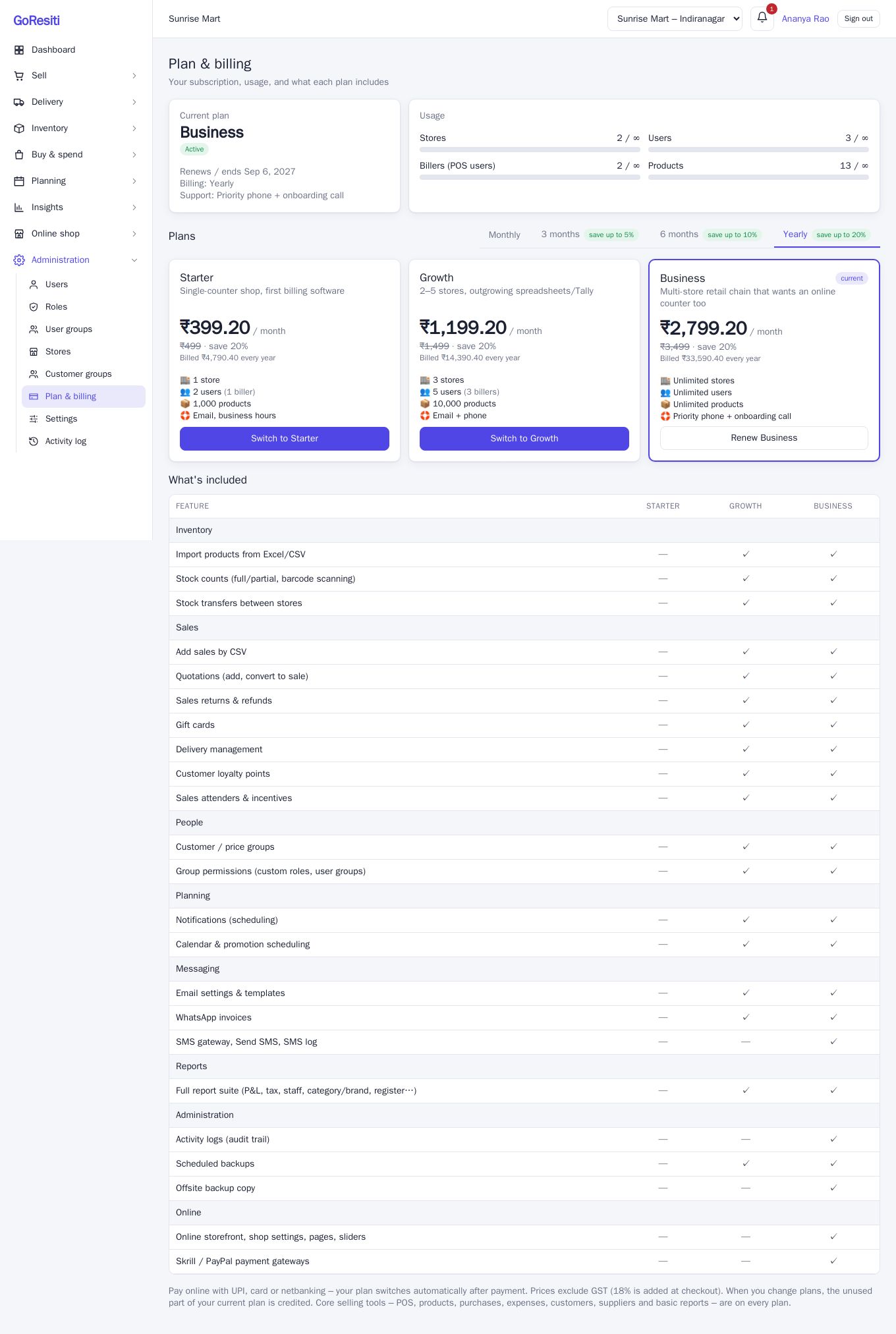
#Your current plan
The Current plan card shows:
- The plan name (Starter, Growth or Business).
- Its state, explained below.
- The date the plan Renews / ends (or Trial ends), your Billing period, and the Support level.
| State | What it means |
|---|---|
| Trial | You are on the free trial and can use the features of the trial plan. |
| Active | Your plan is paid up. |
| Payment overdue – grace period | The plan or trial date has passed, but you still have a few extra days (3 by default) to renew. Everything still works. |
| Expired – read-only | The grace period has ended. You can still sign in and look at everything, but you cannot add or change anything until you renew. |
A coloured banner at the top of every page warns you a week before a plan ends (five days before a trial ends), and again when it is overdue.
#Usage against your limits
The Usage card shows bars for Stores, Users, Billers (POS users) and Products, as "used / allowed". A bar turns amber near the limit and red when full. "∞" means unlimited. A biller is a team member (other than the owner) who is allowed to use the POS.
When you reach a limit, the app stops you adding more and tells you to upgrade.
#What each plan includes
The plan cards show the allowance for each plan, and the What's included table lists every feature with a tick or a dash. This page is always the up-to-date source for prices and limits. In summary:
- Starter: for a single counter. Core selling tools: POS, products, purchases, expenses, customers, suppliers and basic reports.
- Growth: adds product import, stock counts, stock transfers, sales by CSV, quotations, returns and refunds, gift cards, deliveries, loyalty points, attenders and incentives, customer groups, user groups and custom roles, scheduled notifications, the calendar, email templates, WhatsApp invoices, the full report suite and scheduled backups.
- Business: everything in Growth, plus SMS, the activity log, offsite backup copy, the online shop, and PayPal/Skrill gateways, with the highest limits.
Core selling tools are on every plan. In this documentation, pages that need a higher plan say so at the top.
Use the tabs above the plan cards (Monthly, 3 months, 6 months, Yearly) to compare prices. Longer periods are cheaper per month, and the card shows the saving.
#Buying, renewing or switching a plan
Where online payment is available, you pay right here with UPI, card or netbanking through Cashfree.
- Choose a billing period with the tabs.
- On the plan you want, click Buy, Renew, Upgrade to or Switch to (the button text depends on where you are now).
- In the checkout window, check the Billing period and fill in:
- State (for GST): where your business is registered.
- Name, Mobile (10 digits) and Email for the receipt.
- GSTIN (optional): if you enter it, the state is picked automatically and your GSTIN appears on the invoice.
- Check the price breakdown, then click Pay.
- Complete the payment in Cashfree's secure window.
- You return to GoResiti, which says Confirming your payment… for a few seconds. Your plan switches on automatically; you do not need to do anything else.
If the bank is slow, you may see a message that payment is not confirmed yet. If money was debited it is applied automatically; refresh after a few minutes.
#The price breakdown
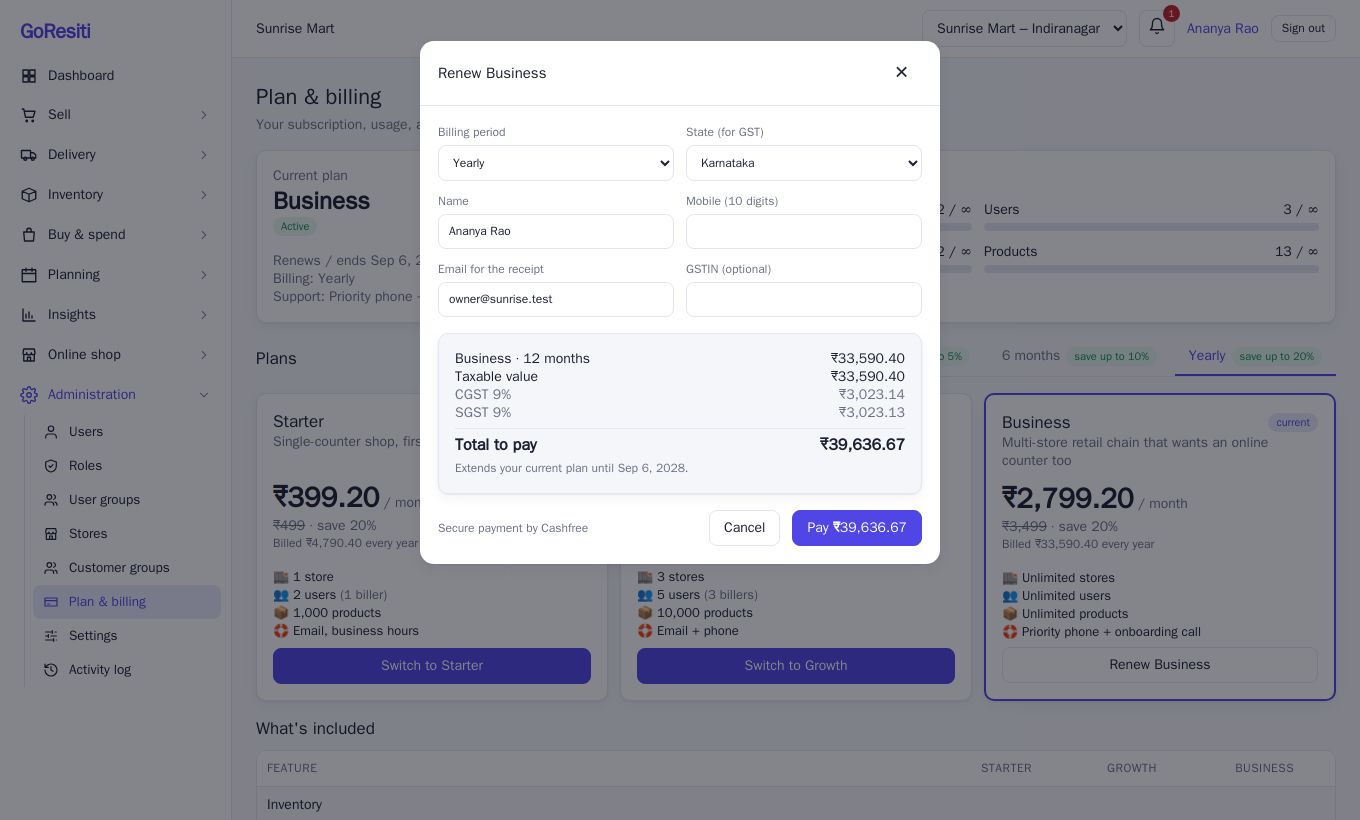
The checkout shows exactly what you will pay:
- The plan price for the period.
- Credit for unused time on your current plan, if you are changing plans (see below).
- Taxable value.
- GST at 18%. If your state is Karnataka you see CGST 9% and SGST 9%; for any other state you see IGST 18%.
- Total to pay, and the date the plan will run until.
#Renewing and switching
- Renewing the same plan adds the new period on to the end of your current one, so you lose no days.
- Switching (up or down) starts the new plan today. The unused part of what you already paid is credited against the new price. For example, if half of your paid year is left, about half of that year's price is deducted before GST is added.
- If the credit already covers the new plan, you will be asked to pick a longer period.
#Downgrading
You can move to a smaller plan only if your current usage fits within it. If you have, say, more products or users than the smaller plan allows, you will see a message such as "Growth allows 5 users, but you currently use 7". Reduce your usage first, or choose a bigger plan. Features that the smaller plan lacks become unavailable.
#Invoices
After every successful payment you get a GST tax invoice, numbered like GR/2026-27/000123 (the financial year and a running number).
- It is emailed as a PDF to the billing email you entered, and to the workspace owner, if email delivery is set up.
- It is listed under Payments & invoices at the bottom of the page. Click Download invoice for the PDF. You can download it again any time.
#When a plan ends
- On the end date: the banner turns to "Your subscription has ended. Renew soon to avoid read-only mode." You can keep working during the grace period.
- After the grace period: the workspace becomes read-only until you renew.
- After you pay: it opens up again immediately.