Coupons, shipping, pages and banners
Create discount coupons, set delivery charges, write content pages and add banners to your online shop's home page.
These four tools live under Online shop in the left menu: Coupons, Shipping, Sliders and Content pages. They help you run offers, charge for delivery and tell customers about your shop.
#Coupons
A coupon is a code the shopper types in the Coupon code box at checkout.
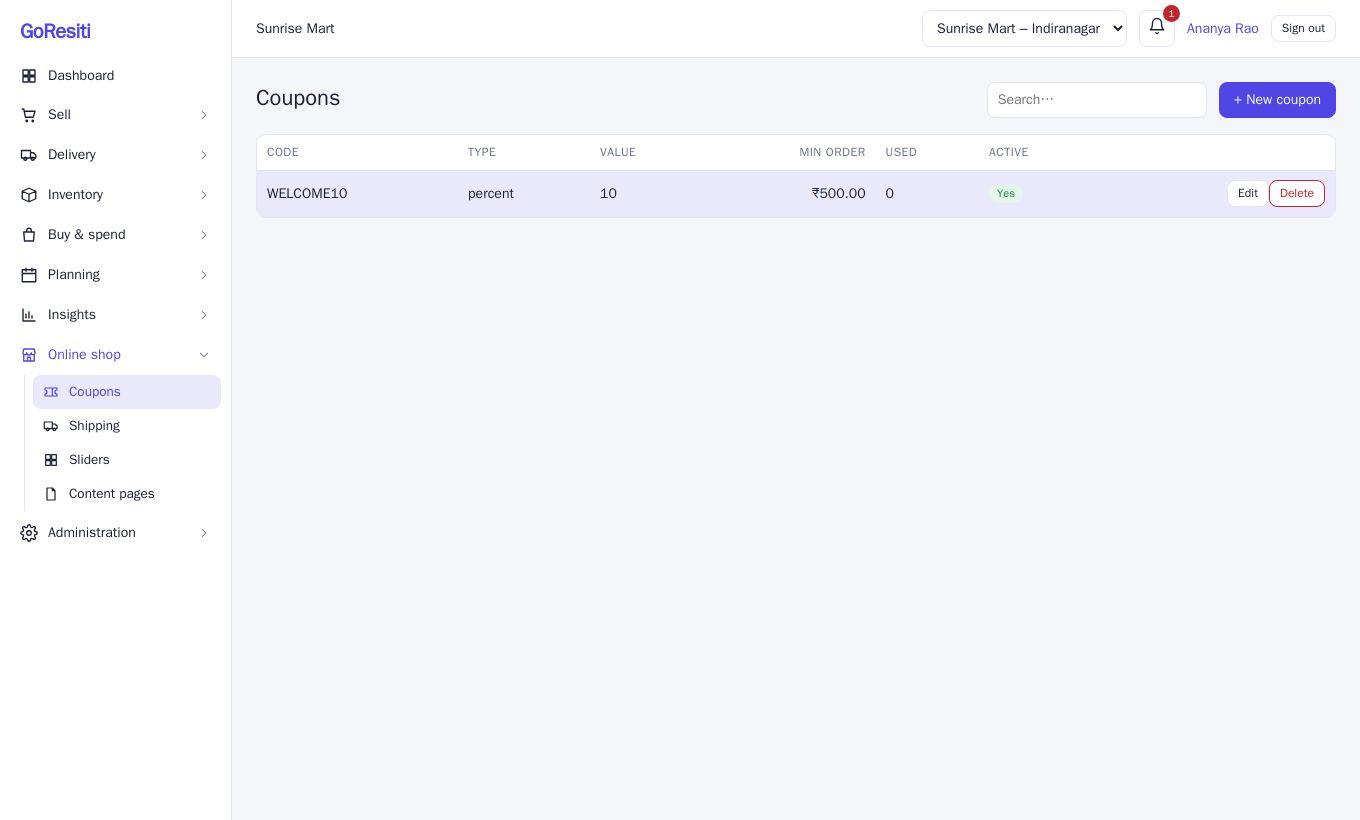
#Create a coupon
- Go to Online shop → Coupons and click + New coupon.
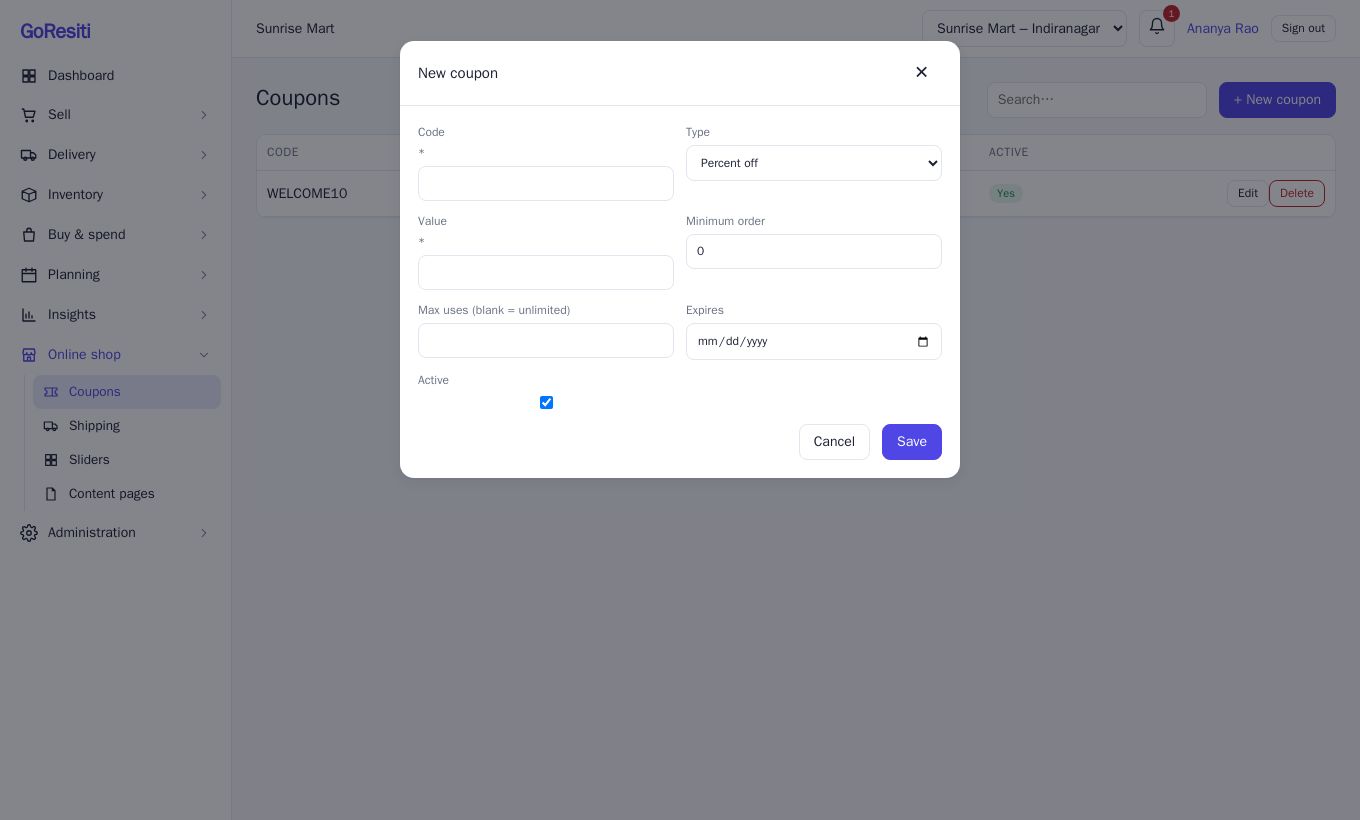
- Fill in the form:
| Field | What to enter |
|---|---|
| Code | The word shoppers type, such as WELCOME10. Codes are saved in capital letters, and shoppers can type them in any case. |
| Type | Percent off or Fixed amount off. |
| Value | The percentage (for example 10) or the rupee amount. |
| Minimum order | The smallest items total needed to use the coupon. Leave 0 for none. |
| Max uses (blank = unlimited) | How many times the coupon can be used in total, by all customers together. |
| Expires | The last date it can be used. Leave blank for no expiry. |
| Active | Untick to switch the coupon off without deleting it. |
- Click Save.
#How a coupon is applied
- The minimum order is checked against the items total before the discount.
- A percent coupon takes that percentage off the items total. A fixed coupon takes off the amount, but never more than the items total.
- The discount comes off the items, and the shipping charge is added after.
- The Used column counts how many orders have used the coupon. When it reaches Max uses, the coupon stops working.
- If a coupon is wrong, expired, switched off or below the minimum, the shopper sees "Coupon is invalid or expired" or a minimum-order message and the order is not placed until they fix it.
#Shipping methods
Shipping methods are the delivery choices shoppers see at checkout, each with a name and a charge.
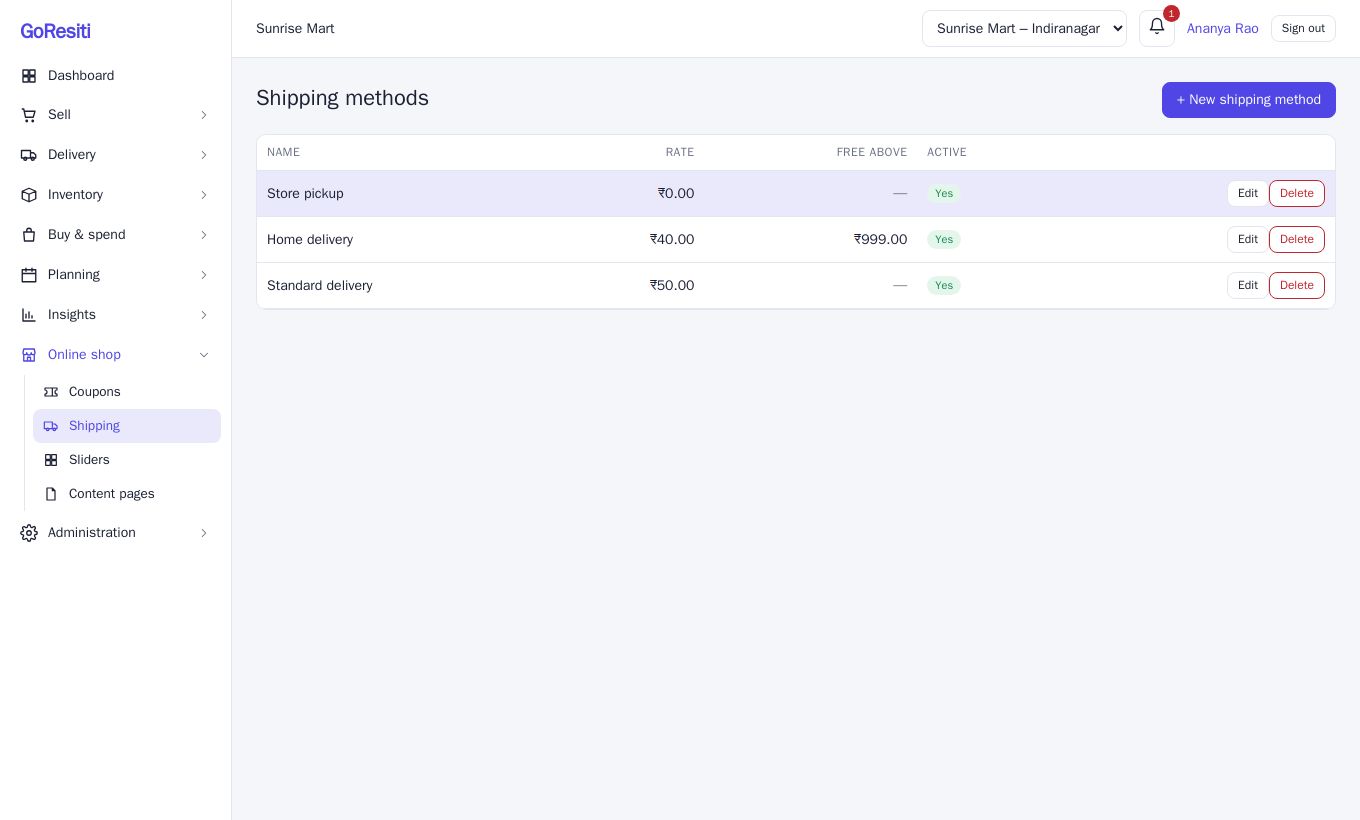
#Add a shipping method
- Go to Online shop → Shipping and click + New shipping method.
- Enter:
- Name – for example "Home delivery" or "Store pickup".
- Rate – the charge in rupees. Use 0 for free.
- Free shipping above order value – optional. When the items total (after any coupon) reaches this amount, shipping becomes free.
- Active – untick to hide the method from shoppers.
- Save.
Examples:
| Name | Rate | Free above | Result |
|---|---|---|---|
| Home delivery | 40 | 500 | ₹40 charge on small orders, free from ₹500 |
| Store pickup | 0 | blank | Always free |
#Content pages
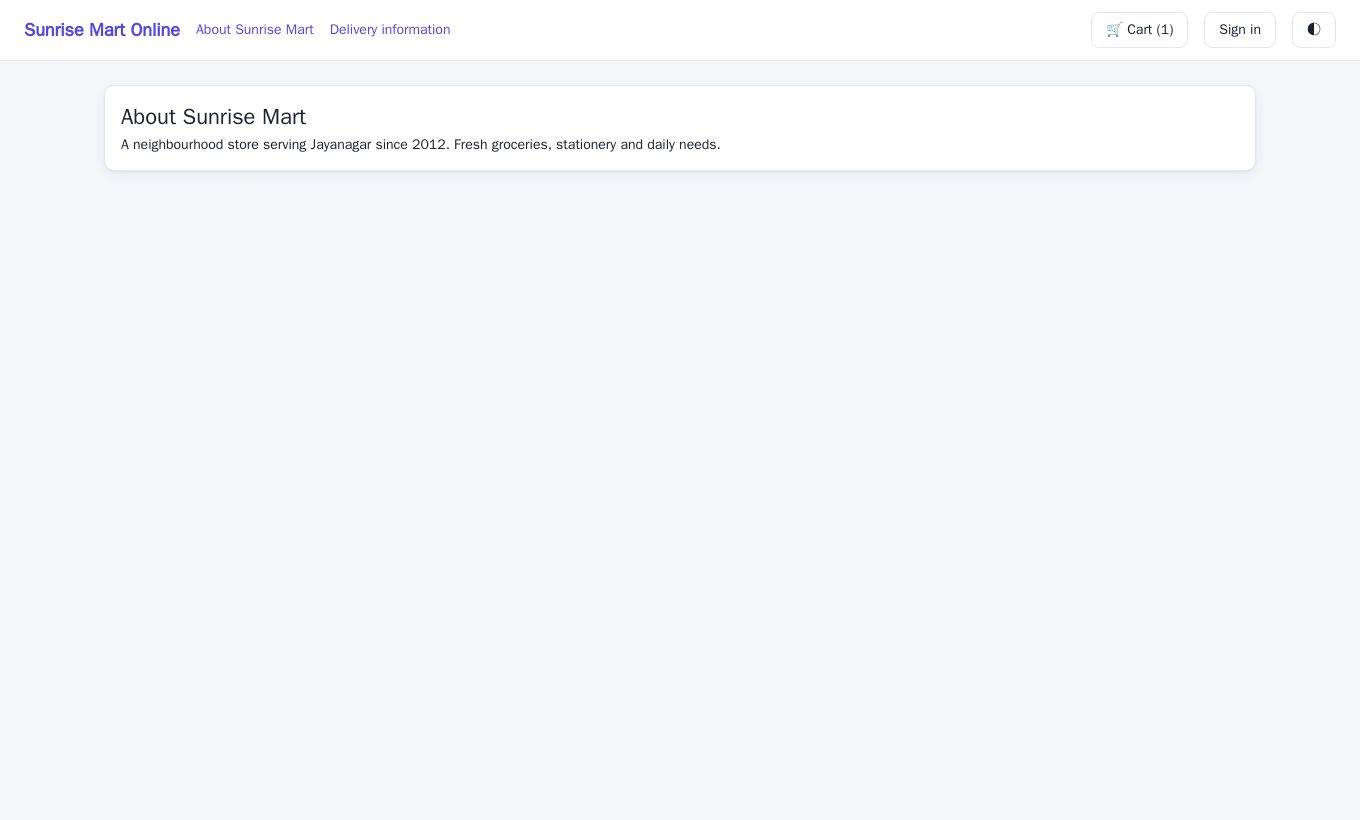
Content pages are simple text pages such as About us, Delivery information, Returns policy or Contact. Every published page gets a link in your shop's header.
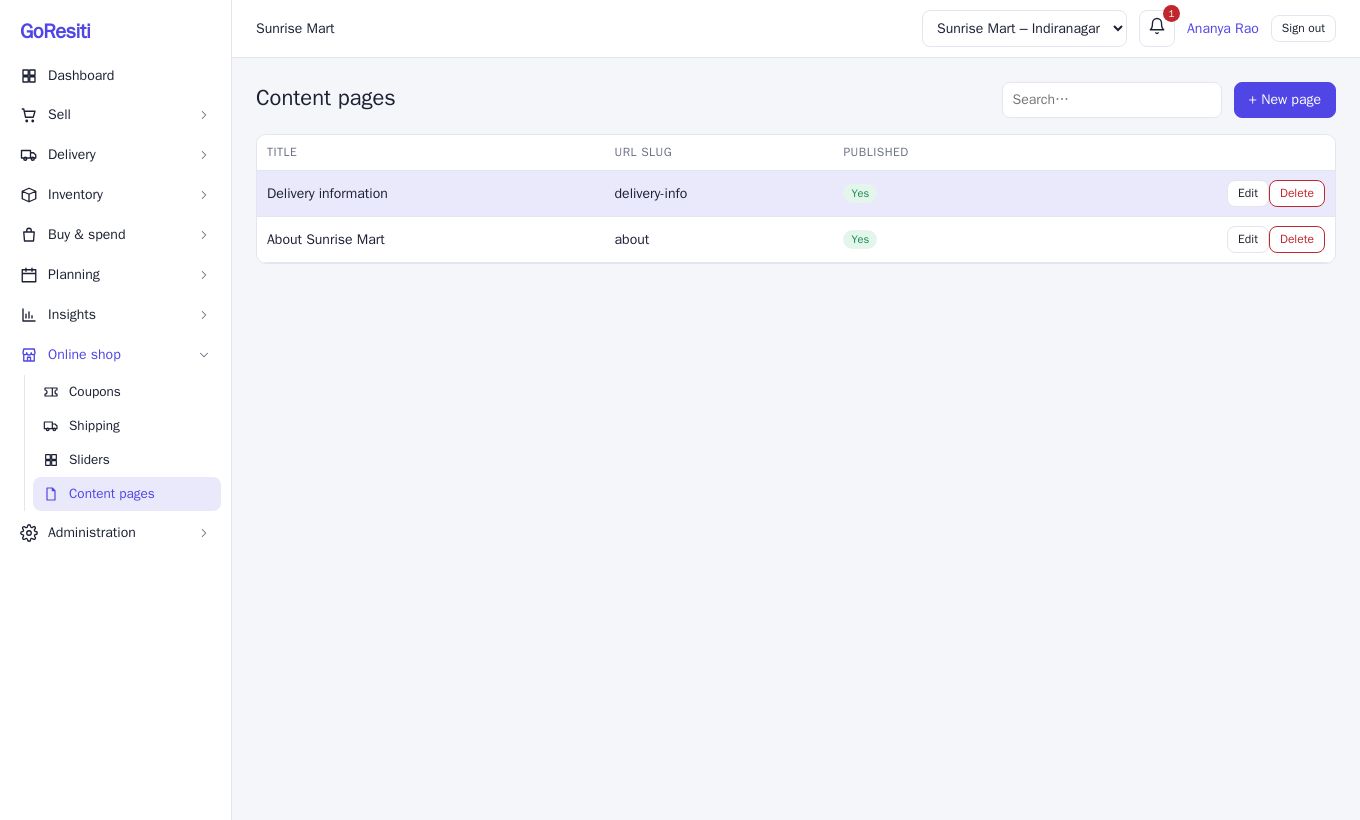
#Write a page
- Go to Online shop → Content pages and click + New page.
- Fill in:
- Title – shown in the header link and at the top of the page.
- Slug (lowercase-with-dashes) – the last part of the page web address, such as
delivery-information. Use only lowercase letters, numbers and dashes. - Content – the text of the page. Line breaks are kept, so use blank lines to separate paragraphs.
- Published – tick to show it in the shop. Untick to keep it as a draft.
- Save.
#Home page sliders (banners)
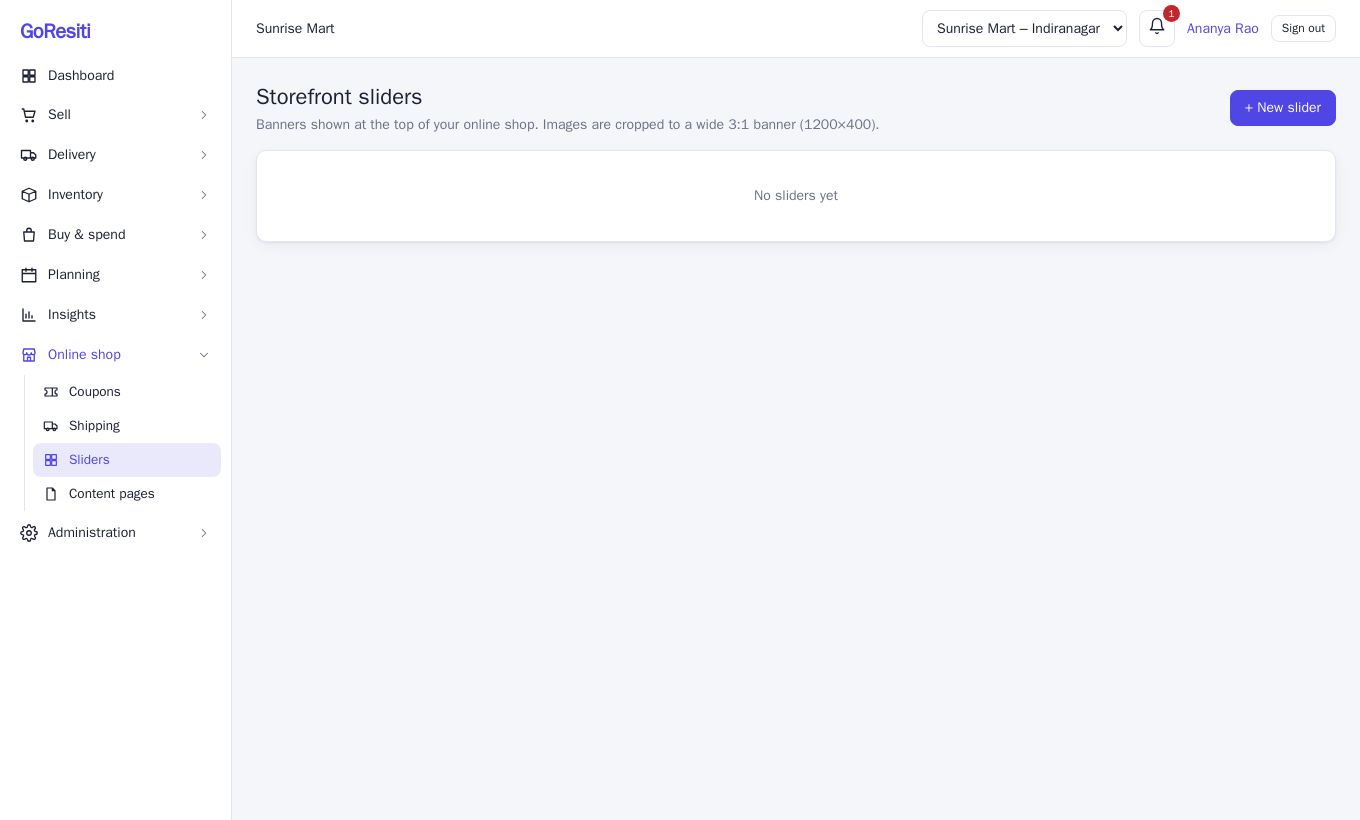
Sliders are the big banners at the top of your shop's home page. Use them for offers and new arrivals.
#Add a slider
- Go to Online shop → Sliders and click + New slider.
- Fill in:
- Title – required, up to 80 characters, shown over the image.
- Subtitle – optional line below the title.
- Link (optional) – where the banner goes when clicked. Use a full web address starting with
https://, or a path starting with/, such as a link to one of your content pages. - Order – lower numbers show first.
- Show in the shop – untick to hide it.
- Click Save.
- On the new slider's card, click Upload image and choose a picture.
#About the image
- Use a PNG, JPEG, WebP or GIF file up to 5 MB.
- Images are cropped to a wide 3:1 banner, 1200 by 400 pixels. Keep the important part of the picture in the middle.
- A slider with no image is not shown to shoppers.
- Click Replace image to swap the picture later.
- With more than one slider, the banner changes automatically every few seconds, and shoppers can click the small dots to move between them.
Cards for hidden sliders look faded and are labelled Hidden; visible ones are labelled Shown.