Users and roles
Add staff to your workspace, control which stores they can use, and decide what each person is allowed to do with roles.
#How access works
Every person who signs in to your workspace is a user. Each user has:
- a role, which decides what they can see and do (for example, only bill at the POS, or only view reports), and
- store access, which decides which stores' data they can work with.
Only people with the Manage users permission (the Owner by default) can add or edit users. Managers with view-only access can see the list but not change it.
#Add a user
Go to Administration → Users. The list shows each person's name, email, role, stores, last sign-in and whether the account is active.
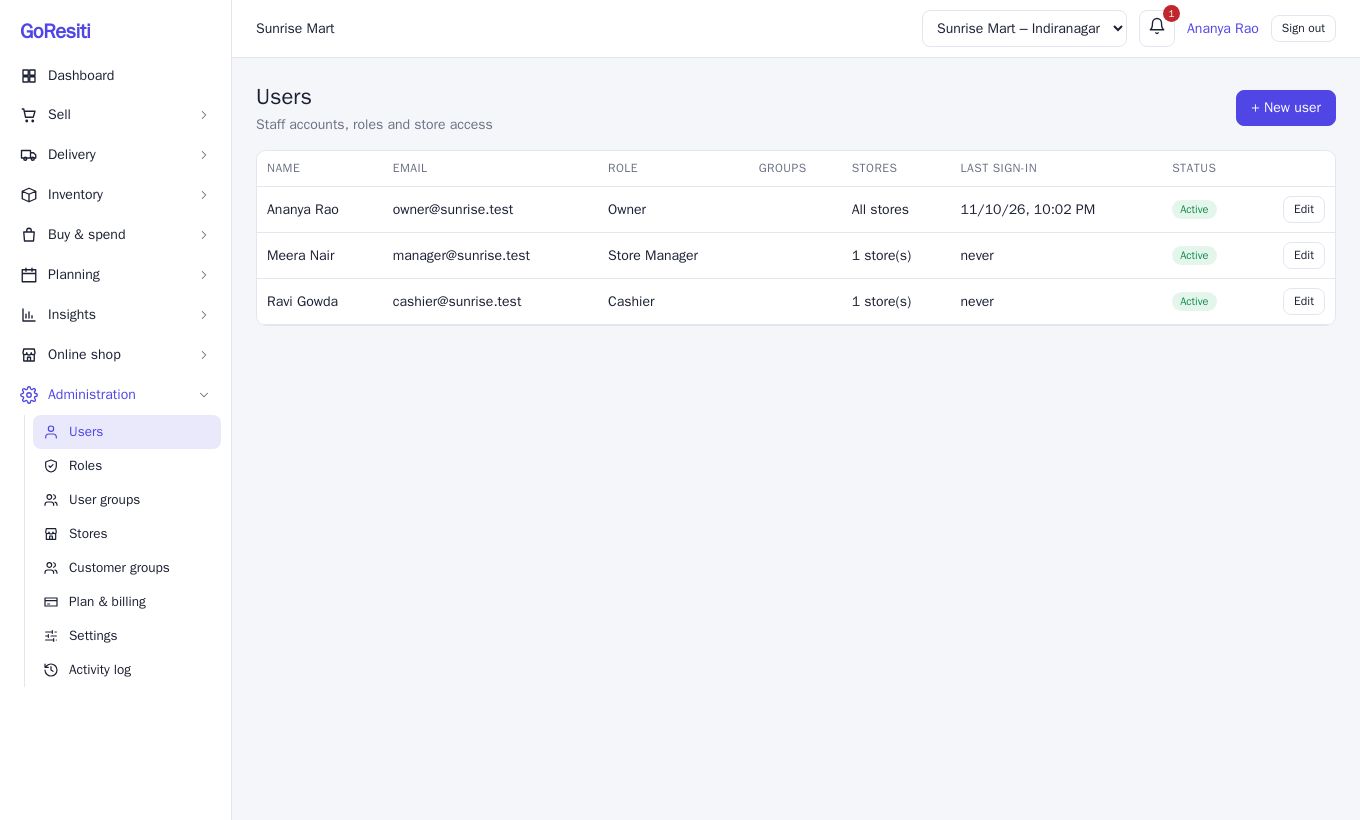
- Click + New user.
- Fill in Name, Email and Password. The password must be at least 8 characters. Phone is optional.
- Choose a Role.
- Decide on store access:
- Tick Access to all stores (current and future) to give access to every store, including stores you add later, or
- leave it unticked and tick the stores under Authorised stores.
- Leave Account active ticked and click Save.
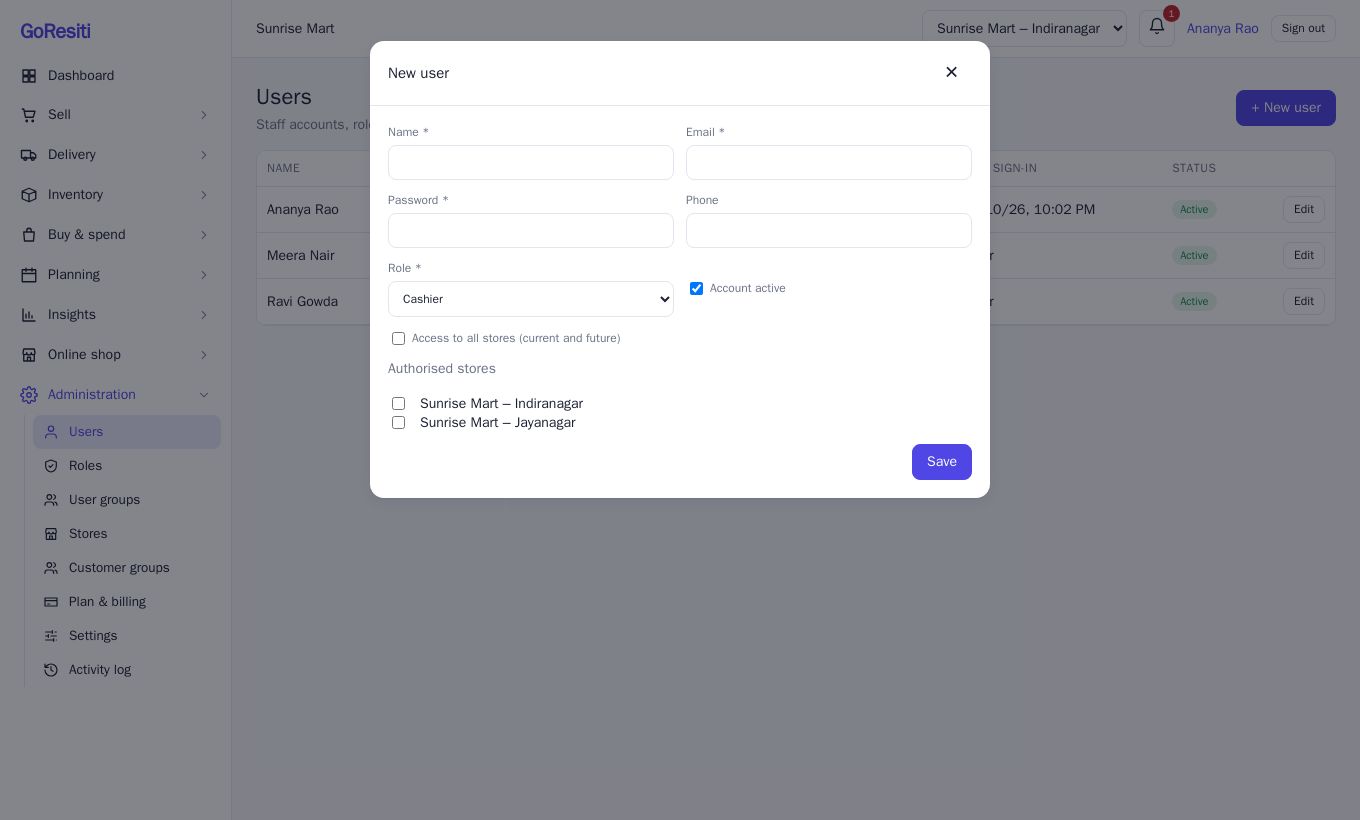
Share the email and password with the person. They sign in using your Workspace code, their email and their password (see Sign in and profile). They can change their own password from My profile.
#Change, deactivate or reactivate a user
Click Edit next to the person. You can change their name, email, phone, role and store access.
- Deactivate: untick Account active and save. The person can no longer sign in, but their past sales and records stay. You cannot deactivate your own account.
- Reactivate: tick Account active again. This counts against your plan's limits, so you may be asked to upgrade if you are already at the limit.
#Reset a password
Open Edit for the user, type a new password in New password (optional) (at least 8 characters) and save. Leave the field empty to keep the current password. Then tell the person their new password.
If someone forgets their own password, they can click Forgot password? on the sign-in page. A reset link is emailed to them and works for one hour. This needs email to be set up for your workspace; see Troubleshooting.
#Built-in roles
Every workspace starts with these roles. They are marked system on the Roles page.
| Role | What it is meant for |
|---|---|
| Owner | Full access to everything, including billing and settings. This role cannot be changed. |
| Store Manager | Everything except managing users, editing roles and changing settings. Can view the user list. |
| Cashier | Use the POS, apply discounts, view and create sales, process refunds, view registers, add and edit customers, and view products and stock. |
| Inventory Staff | View, create, edit and import products, manage categories, brands, units and taxes, and adjust, transfer and count stock. |
| Purchasing Staff | Manage suppliers and purchases (create, edit, receive, record payments) and view products and stock. |
| Sales & Service | Create and edit sales, mark deliveries, manage quotations and customers, and view products and gift cards. No POS access. |
| Report Only | See the dashboard and reports. |
#View or edit roles
Go to Administration → Roles. Click a role on the left to see its permissions, grouped by area (products, stock, sales, POS and so on).
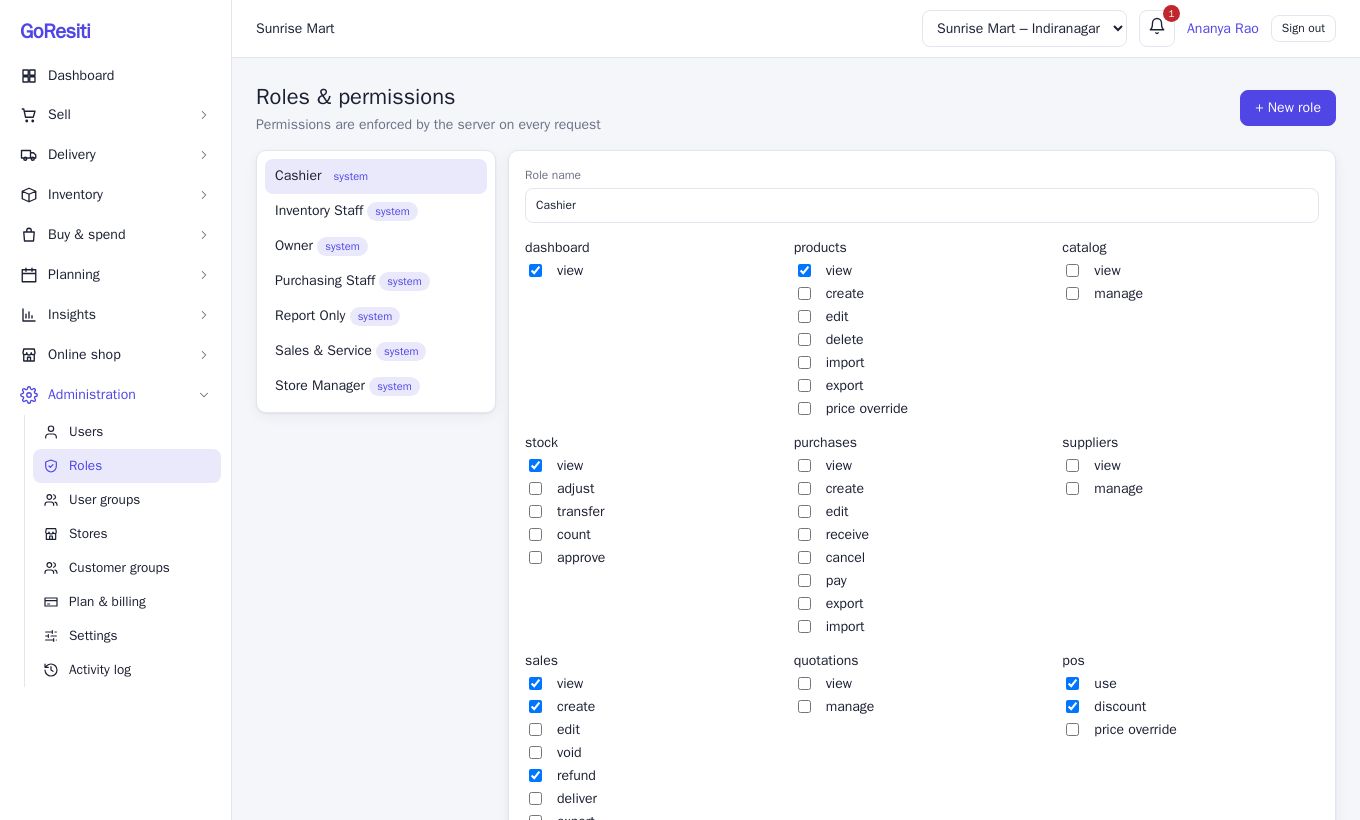
On the Starter plan you use the built-in roles as they are. Editing roles and creating your own is part of the Growth plan and above (the page shows a notice if your plan does not include it).
#Create a custom role
On Growth or Business, you need the Manage roles permission.
- Go to Administration → Roles and click + New role.
- Type a Role name, such as "Senior Cashier".
- Tick the permissions the role should have. Each area has actions such as view, create, edit, delete, import, export and manage.
- Click Save role.
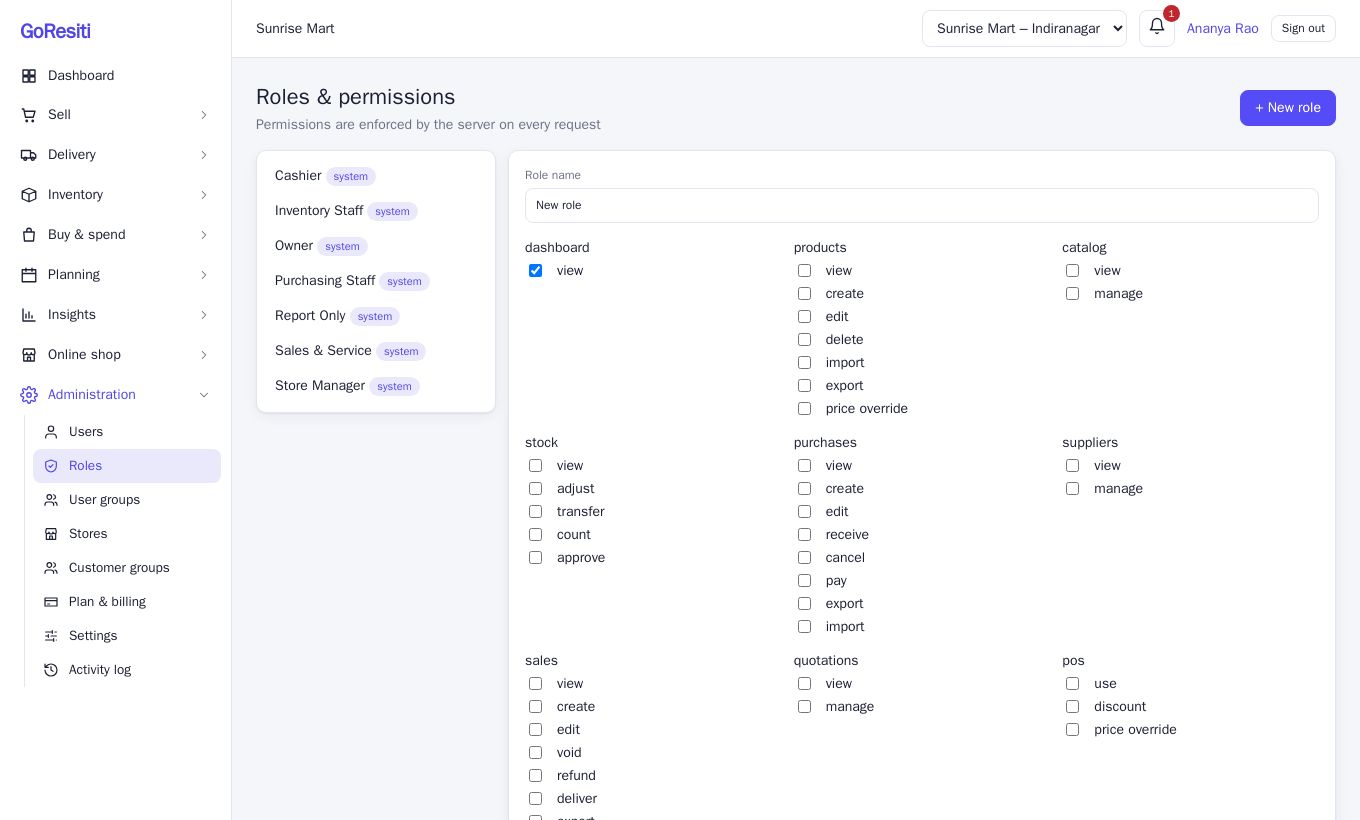
Then choose the new role when you add or edit a user.
You can also edit a built-in role (except Owner) by changing the ticks and clicking Save role. A custom role can be removed with Delete, but only if no user and no user group is using it. Built-in roles cannot be deleted.
#Biller limits
A biller is an active user who can bill at the POS, either through their role or through a group's role (the pos use permission). The Owner is not counted. Your plan limits how many billers you can have, along with the total number of users and stores.
| Starter | Growth | Business | |
|---|---|---|---|
| Users | 2 | 5 | Unlimited |
| Billers (POS users) | 1 | 3 | Unlimited |
| Stores | 1 | 3 | Unlimited |
These are the standard limits; check Administration → Plan & billing to see the limits and current usage for your own workspace. If you try to go over, you will see a message such as "Your Starter plan allows up to 1 biller (POS user) – upgrade your plan to add more." Giving pos use to another role can also push you over the biller limit, and the change will be refused. See Plan and billing.