User groups
Give the same role to several people at once by putting them in a group.
#What a user group does
A user group lets you give one role to many people in a single step. Every member of the group gets the permissions of the group's role in addition to the permissions of their own role.
For example, create a group called "Stock takers" with the Inventory Staff role and add three cashiers. Those cashiers keep their Cashier permissions and can also count and adjust stock.
User groups are part of the Growth plan and above (together with custom roles). Creating and editing groups needs the Manage users permission.
#Create a group
Go to Administration → User groups. The list shows each group, the role it grants, and its members.
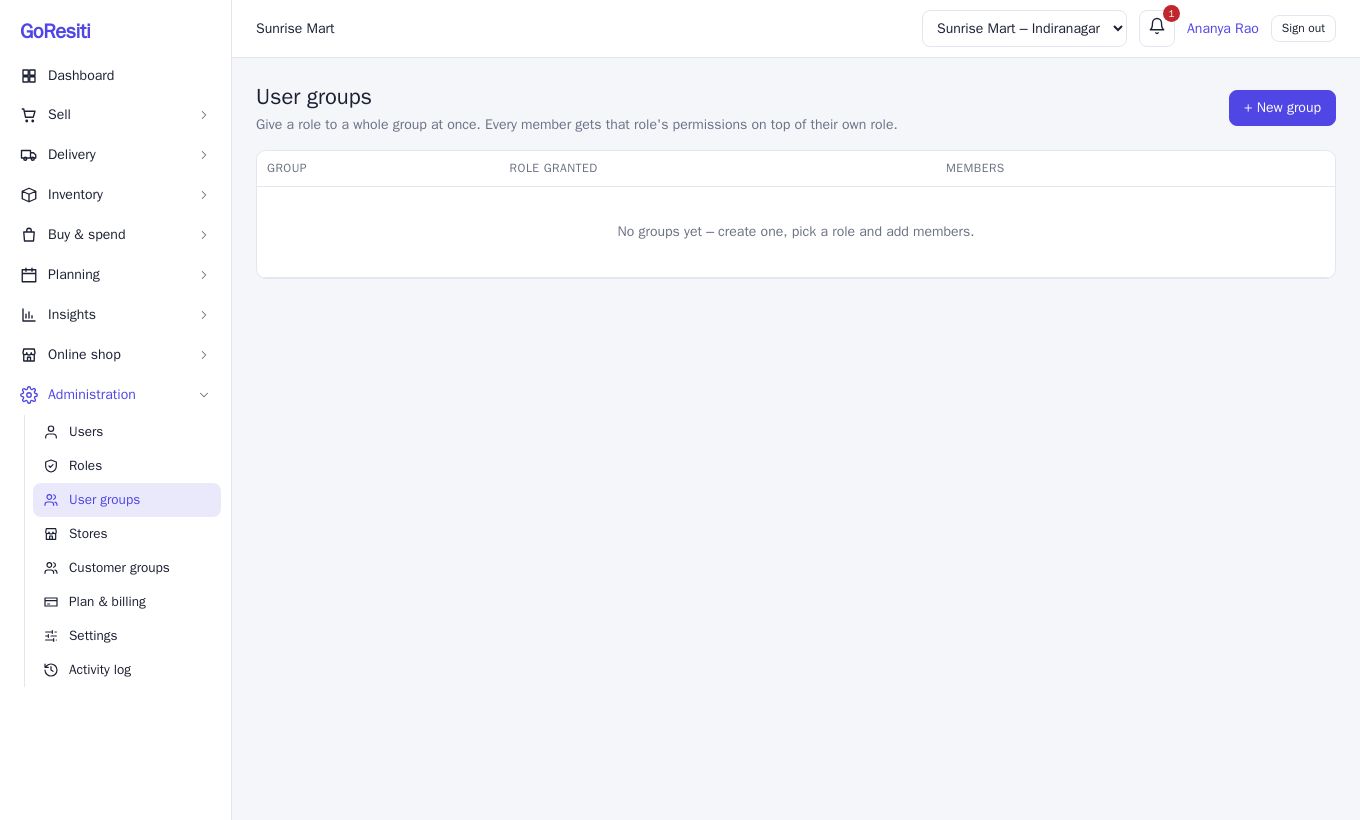
- Click + New group.
- Enter a Group name. The Description is optional.
- Choose the Role for all members.
- Under Members, tick the people to add. Use the Filter... box to find someone by name or email.
- Click Save group.
#Edit or delete a group
- Click Edit to rename the group, change its role or change its members.
- Click Delete to remove the group. Its members lose the access the group gave them but keep their own role.
#Groups and your biller limit
If a group's role includes the POS (pos use), every member counts as a biller on your plan. If adding people to the group would take you over your plan's biller limit, the change is refused with a message explaining the limit.