Signing in and your profile
How to get your GoResiti workspace, sign in, reset a forgotten password, change your password and sign out.
#Getting your workspace
Every shop in GoResiti has its own private workspace, identified by a short workspace code (for example sunrise). You use this code every time you sign in.
- Open the GoResiti website and click Start free trial.
- Fill in the request form: Business name, Your name, Work email, Phone, Workspace code and Business type. The code can use 3 to 30 lowercase letters, numbers or dashes, and the form tells you straight away whether it is available.
- Tick the box to accept the Terms of Service and Privacy Policy, then click Request free trial.
- You get a confirmation email. Our team reviews each request and, once it is approved, emails your login details to the address you gave.
#Signing in
- Open the GoResiti sign-in page.
- Enter your Workspace code, your Email and your Password.
- Click Sign in.
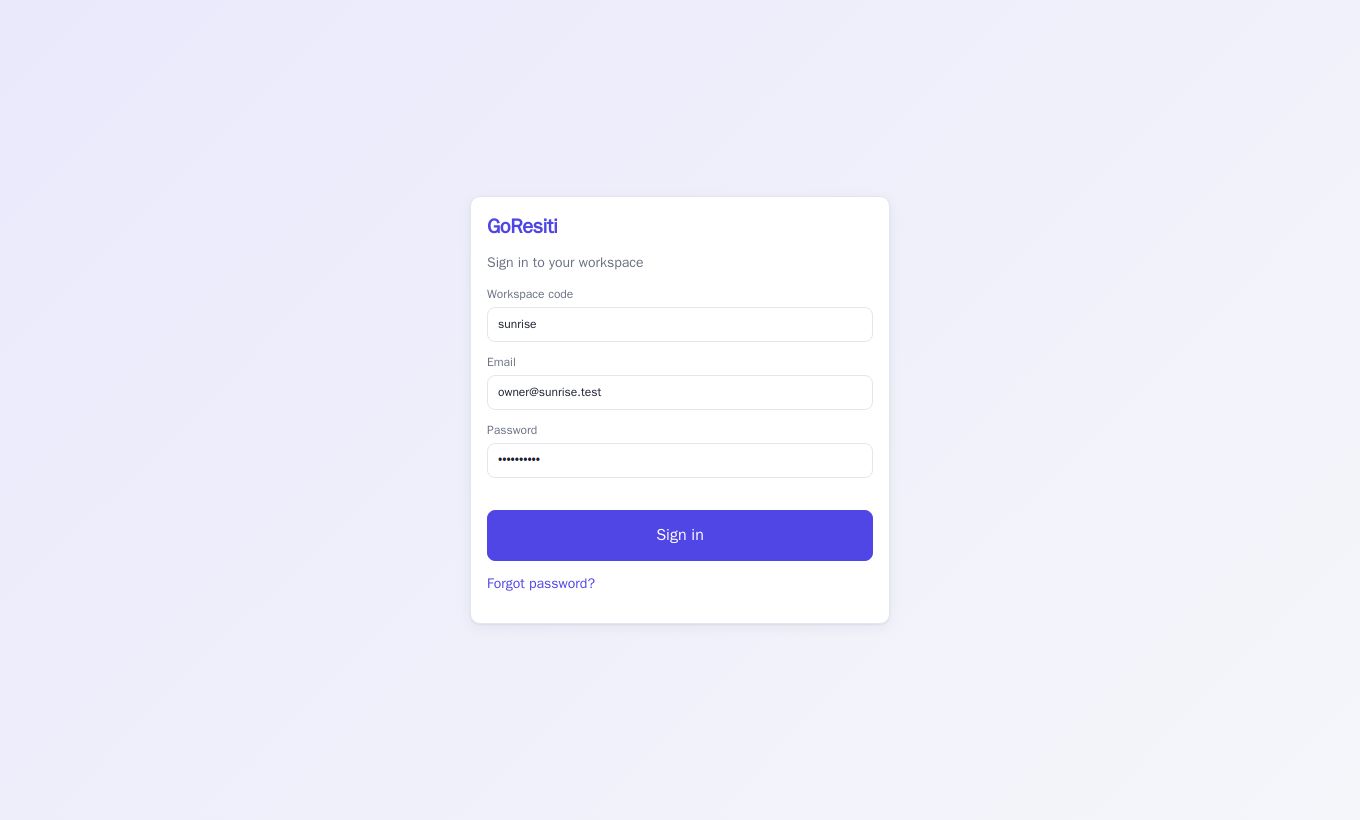
If you have been here before, the workspace code is remembered on that device. When you type a valid workspace code, your shop's logo and colours appear on the sign-in page.
Where you land after signing in depends on what you are allowed to do: owners and managers go to the Dashboard, cashiers who can only bill go straight to the POS, and everyone else lands on My profile.
If something is wrong you will see one message: Invalid workspace, email or password. For safety it never says which of the three is wrong, so check all of them. Also check that the shop's workspace is active and your account has not been switched off by the owner.
#Forgot your password
- On the sign-in page, click Forgot password?
- Enter your Workspace code and Email, then click Send reset link.
- Open the email titled "Reset your GoResiti password" and click the link. It works for 1 hour.
- Type a New password (min 8 characters) and click Update password, then sign in as usual.
The page always says "If that account exists, a reset link has been sent", even if the email is not registered. This protects your shop from strangers guessing who uses it. If no email arrives, check spam, then ask your shop owner to confirm your email address under Users.
#Your profile
Click your name at the top right to open My profile. It shows your name, email address and role.
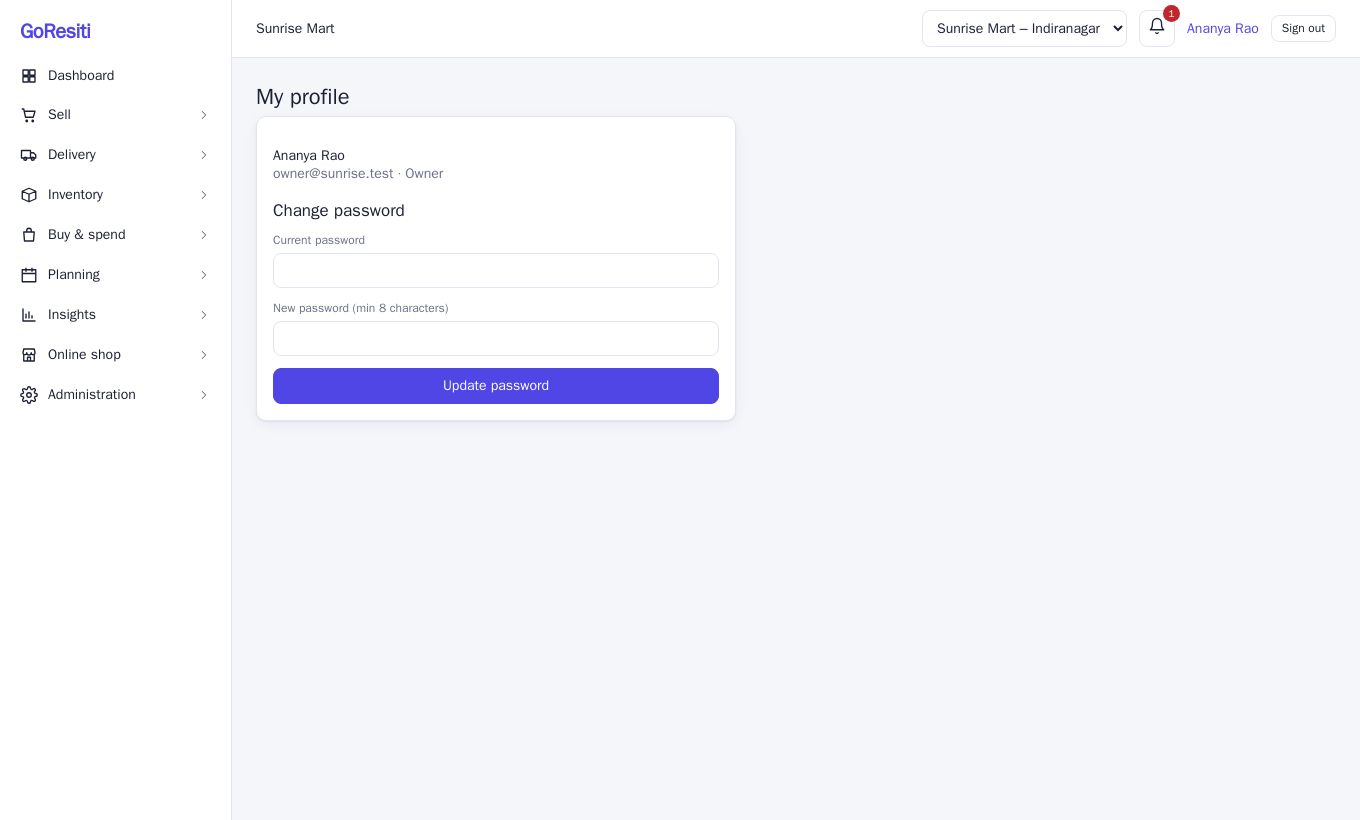
To change your password:
- Type your Current password.
- Type a New password (min 8 characters).
- Click Update password. You will see a "Password updated" message.
#Signing out
Click Sign out at the top right. Do this on shared counters at the end of every shift. On the POS screen, use Backend to return to the main app, then Sign out.