What your customers see
A walkthrough of the shopper's journey, from browsing to order confirmation, so you can help customers who get stuck.
This page walks through your online shop as a shopper sees it. Use it to answer customer questions, and try the steps yourself with a test order.
#Browsing and searching
When a customer opens your shop address, they see your shop title and any content pages (such as About and Delivery information) along the top. If you have sliders, a banner appears above the products. Below it are:
- A Search products… box. Typing part of a name and pressing Enter shows matching products.
- A category drop-down, starting at All categories.
- Product cards with a photo (or the first letter of the name if there is no photo), the name, a short description and the price.
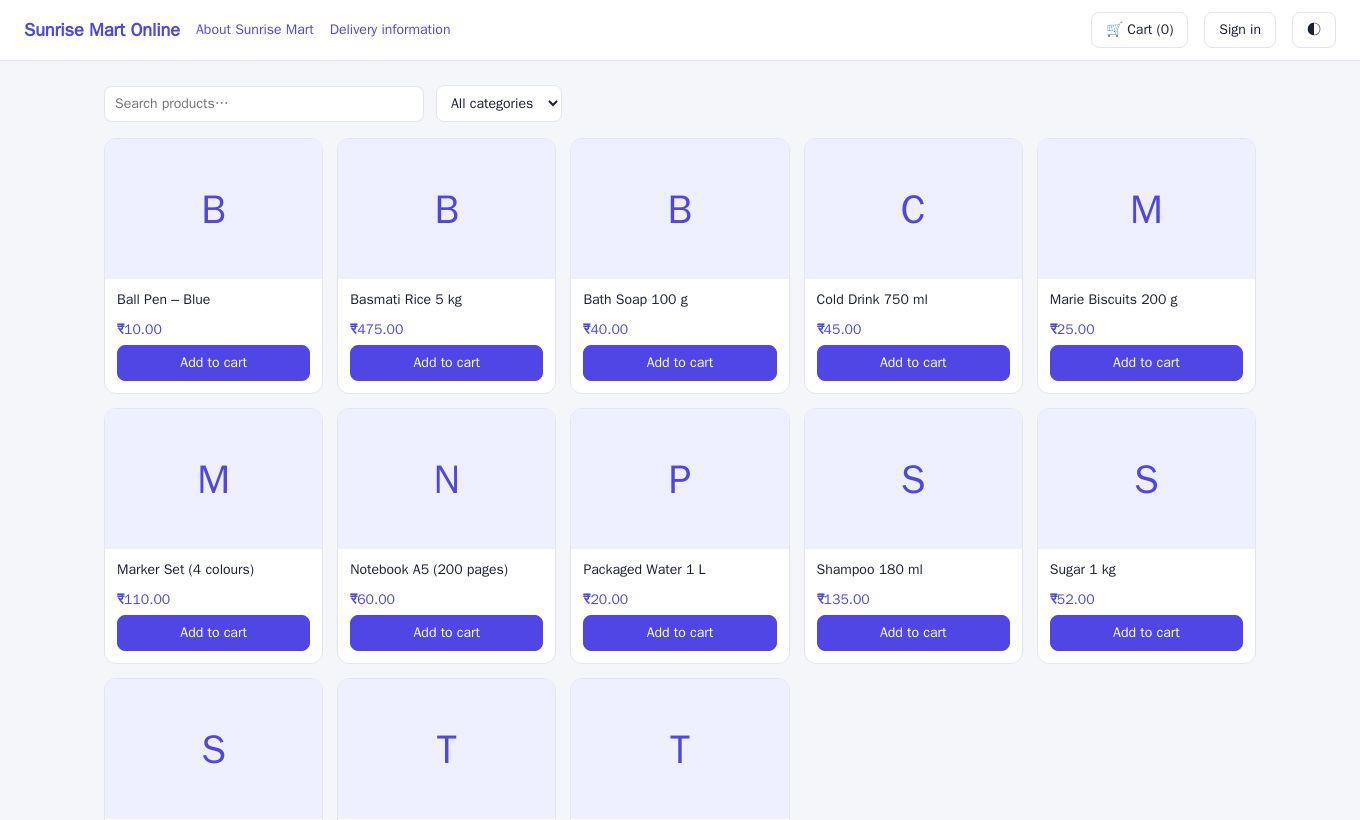
Products with variants (for example sizes) show a drop-down on the card. The shopper picks one before adding to cart, and the variant's own price is used.
If you turned on Private shop, shoppers see "This is a private shop. Please sign in to browse." until they sign in. If checkout is off, cards show no Add to cart button and a "Catalogue only" notice appears.
#Adding to the cart
Click Add to cart on a product. The Cart button at the top shows how many items are inside. The cart is remembered on the customer's phone or computer, even if they leave and return.
On the cart page the shopper can:
- Change a quantity or remove an item with the red ✕ button.
- See the Items total.
#Signing up and signing in
Shoppers must have an account to check out. If they are not signed in, the cart says "Please sign in or create an account to check out."
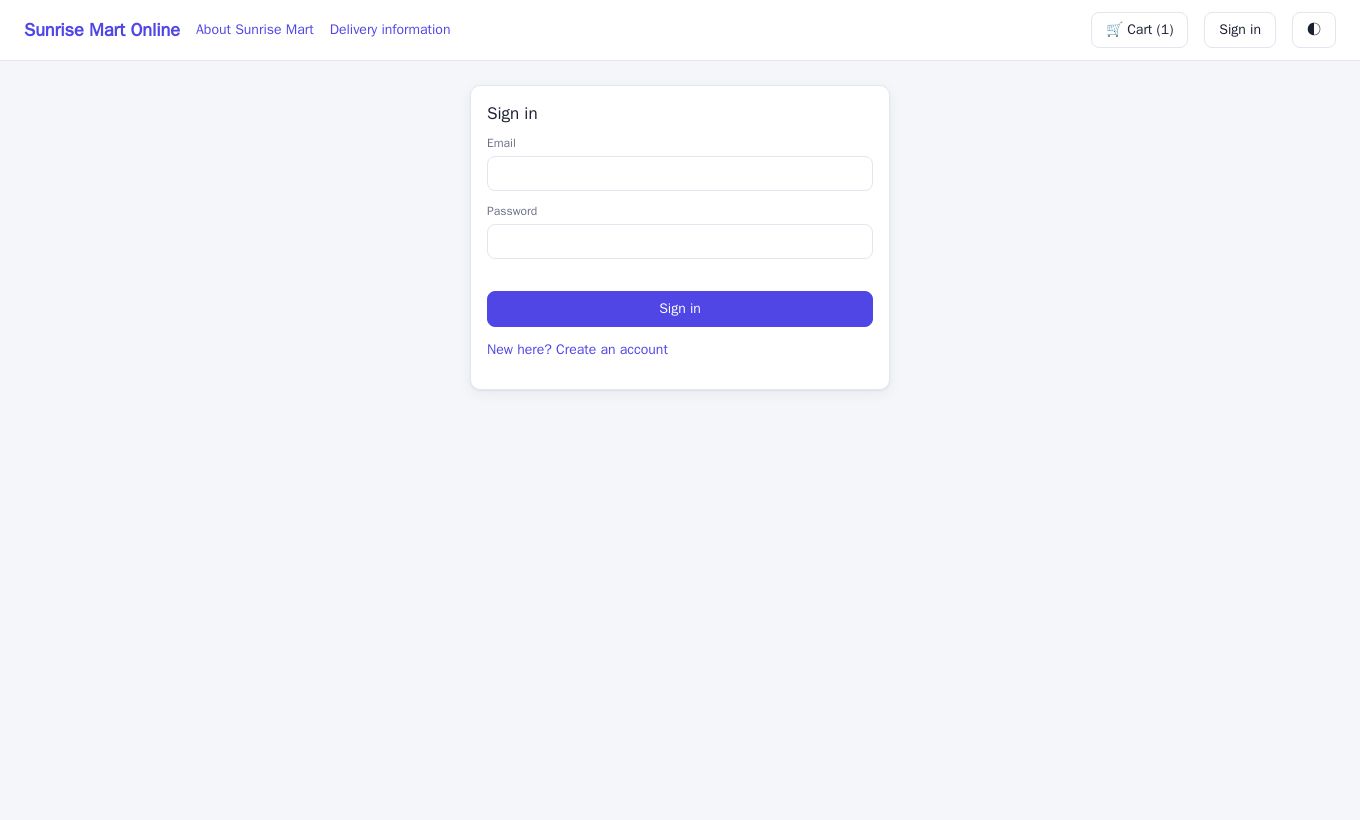
- Create account needs a name, email and a password of at least 8 characters.
- Sign in needs the email and password.
- If the same email is already saved as a customer in your shop (for example from the POS), the new account is attached to that customer.
- Sign-in stays active for about two weeks on that device. The Sign out button is at the top.
If a customer forgets their password, there is no self-service reset on the shop page; ask them to contact you so that you can help.
#Checkout
Once signed in, the lower half of the cart page shows the checkout form:
- Delivery address – required.
- Shipping – choose one of your shipping methods. Each shows its name and charge. See Coupons, shipping and pages.
- Coupon code – optional.
- Payment – Cash on delivery, UPI, Google Pay, PhonePe, Card, plus PayPal and Skrill if you switched them on.
- Click Place order.
A note on the page says that the final price, tax and any coupon discount are worked out when the order is placed. If a coupon is invalid, expired or below the minimum order, or an item is no longer available, a red message appears and nothing is ordered. The customer can fix it and try again.
#Paying
- Cash on delivery – the order is placed at once. The confirmation says "Pay on delivery."
- UPI, Google Pay, PhonePe, Card – the confirmation says "Complete the payment in your app. We'll confirm your order as soon as the payment is received." The order stays pending until the payment is confirmed.
- PayPal or Skrill – the shopper is sent to the provider's page. When they come back they see one of:
- Payment received – the order is confirmed.
- Payment cancelled – the order is cancelled and nothing is charged.
- We couldn't confirm the payment – they are told that if money was taken, it will be matched to the order shortly and to check My orders.
#Order confirmation
After placing an order, the shopper sees Order placed with their order number and total, and a View my orders button. The order number is the same as the invoice number you see in Sales, so a customer can quote it when they call.
#My account and My orders
Signed-in shoppers have a My orders button at the top. It opens their account page with:
- Their profile: Name, Phone, Address and City, with Save profile.
- A list of their orders. Each shows the number, date, status (pending, completed or cancelled), the delivery status if it has one, the total and the items.
#Content pages
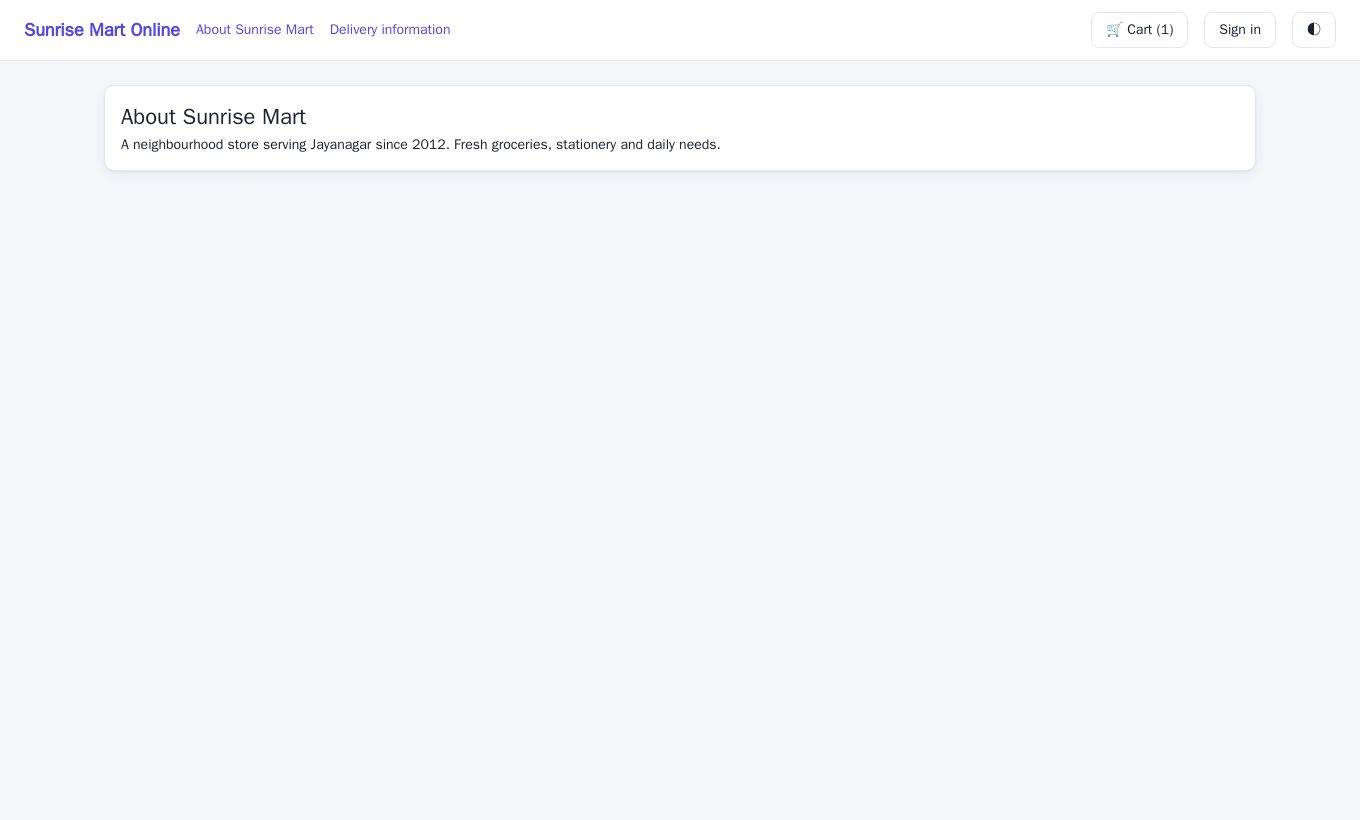
Published pages such as About Sunrise Mart and Delivery information appear as links in the shop header. Shoppers click one to read it.
#Common questions from customers
| Customer says | What to check |
|---|---|
| "I can't see any products." | Is the shop private? Is the product active and ticked Show in online shop? |
| "I can't add to cart." | Allow checkout may be off. |
| "My coupon doesn't work." | Check the code, the expiry date, the minimum order and whether the maximum uses is reached. |
| "I paid but the order says pending." | Look at the order in Sales and the payment status. |
| "I forgot my password." | There is no reset link on the shop. Ask them to contact you; there is no reset link on the shop. |