Categories, brands, units and taxes
Set up the lists you pick from when adding products, and understand how GST slabs work.
#Why these lists matter
Before you add many products, it helps to set up four short lists. You pick from them on every product, and they power your reports (for example, sales by category) and your GST calculations.
You will find them under Inventory: Categories, Brands, Units and Taxes. Adding or changing entries needs catalogue management permission, usually held by owners and managers. See Users and roles.
#Categories
Categories group similar items, such as Grocery, Stationery or Beverages.
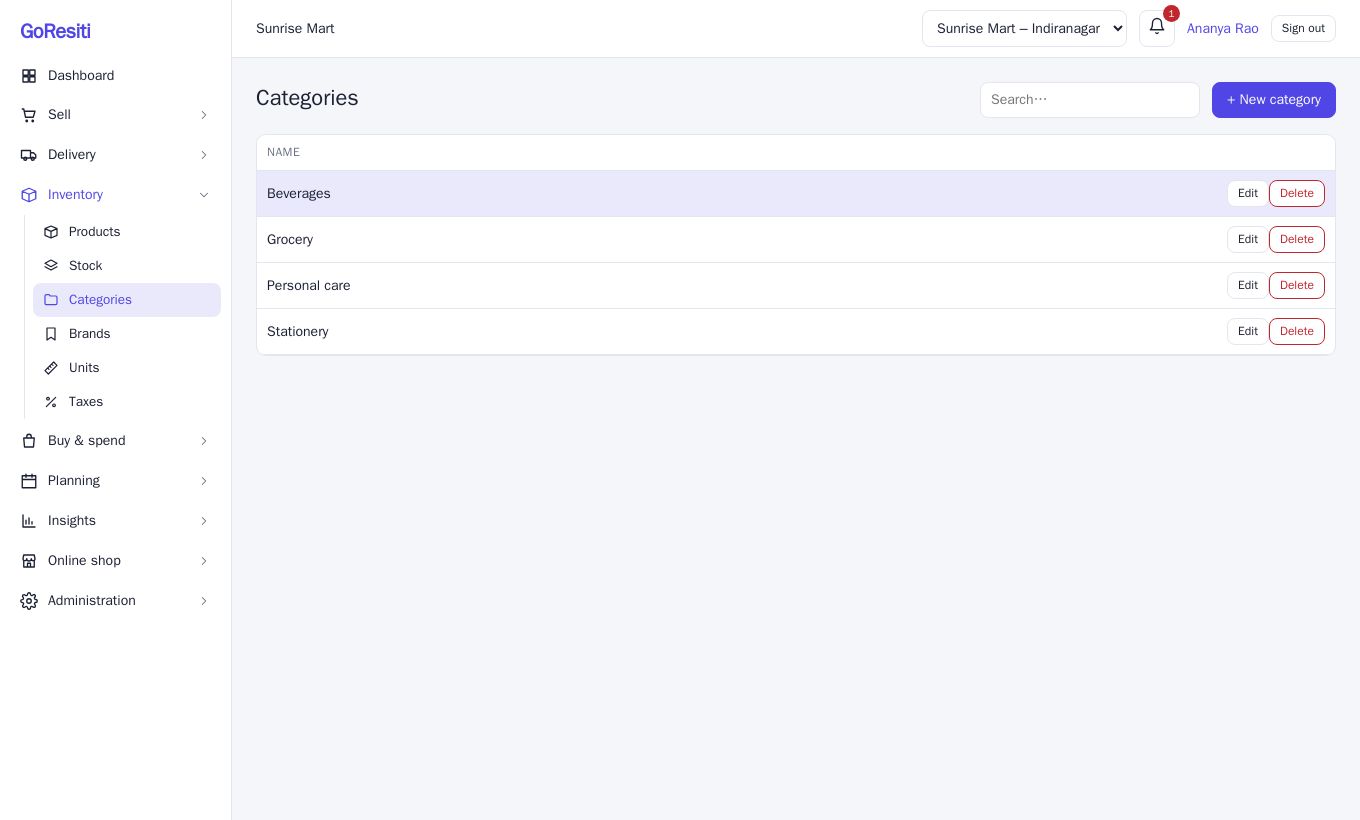
- Open Inventory → Categories.
- Click the add button and type a Name.
- Save.
Use the search box to find a category quickly, and the edit or delete buttons on each row to change it.
#Brands
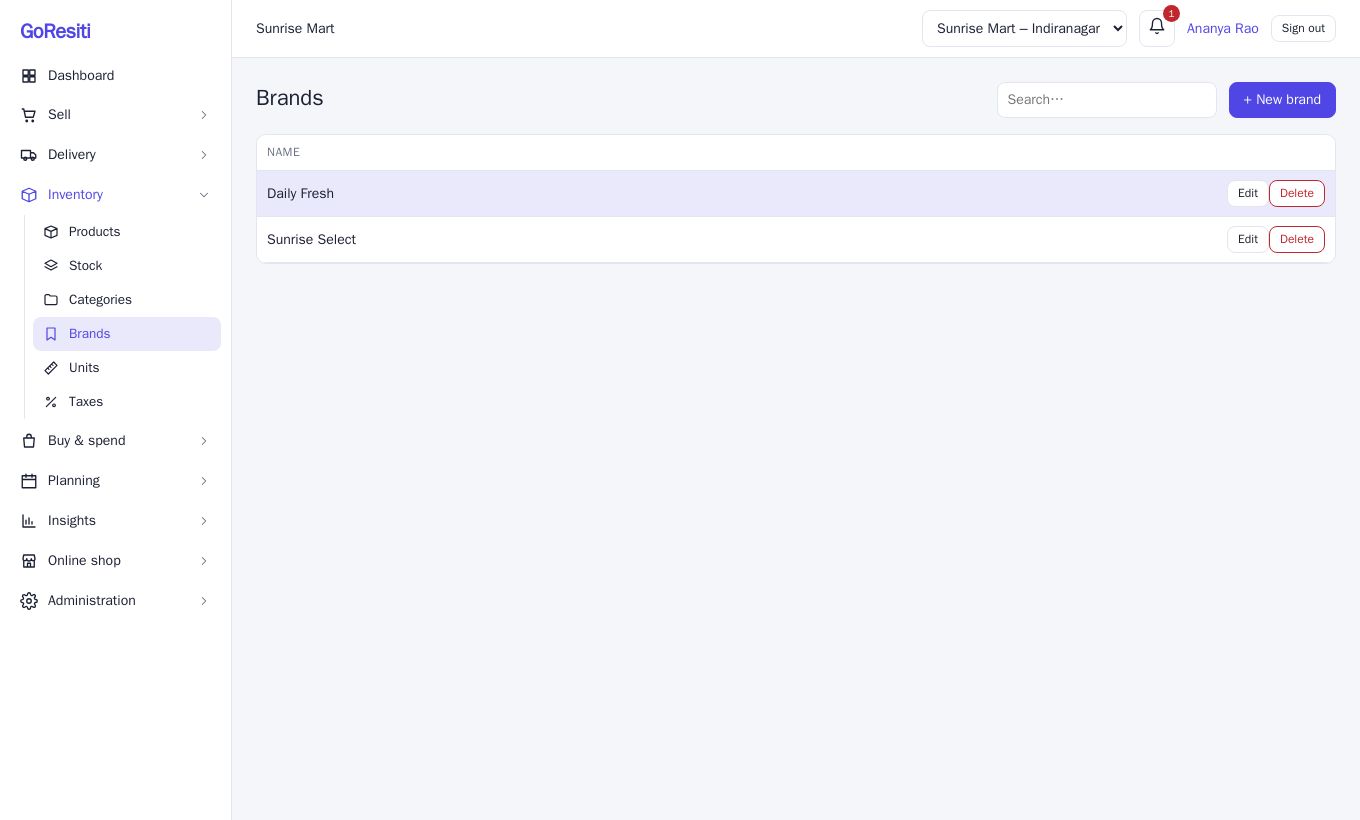
Brands work the same way. Add the brands you stock so you can see which ones sell best. A brand is optional on a product.
#Units
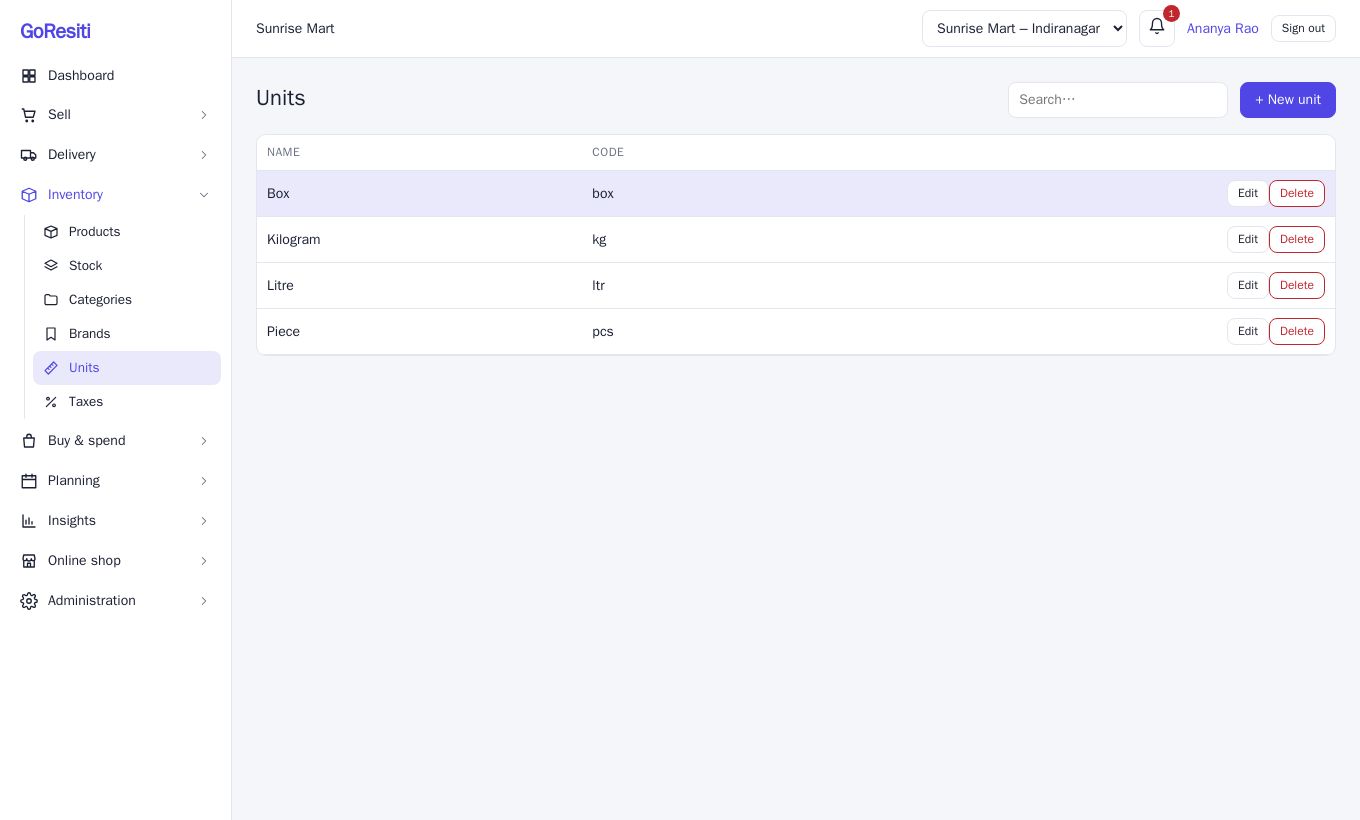
A unit says how an item is counted or sold: Piece, Kilogram, Litre, Pack and so on. Each unit has two fields:
- Name, for example Kilogram.
- Code, a short form such as kg.
#Taxes (GST slabs)
The Taxes list holds your GST rates. GoResiti creates the standard GST slabs for you, so most shops never need to add one.
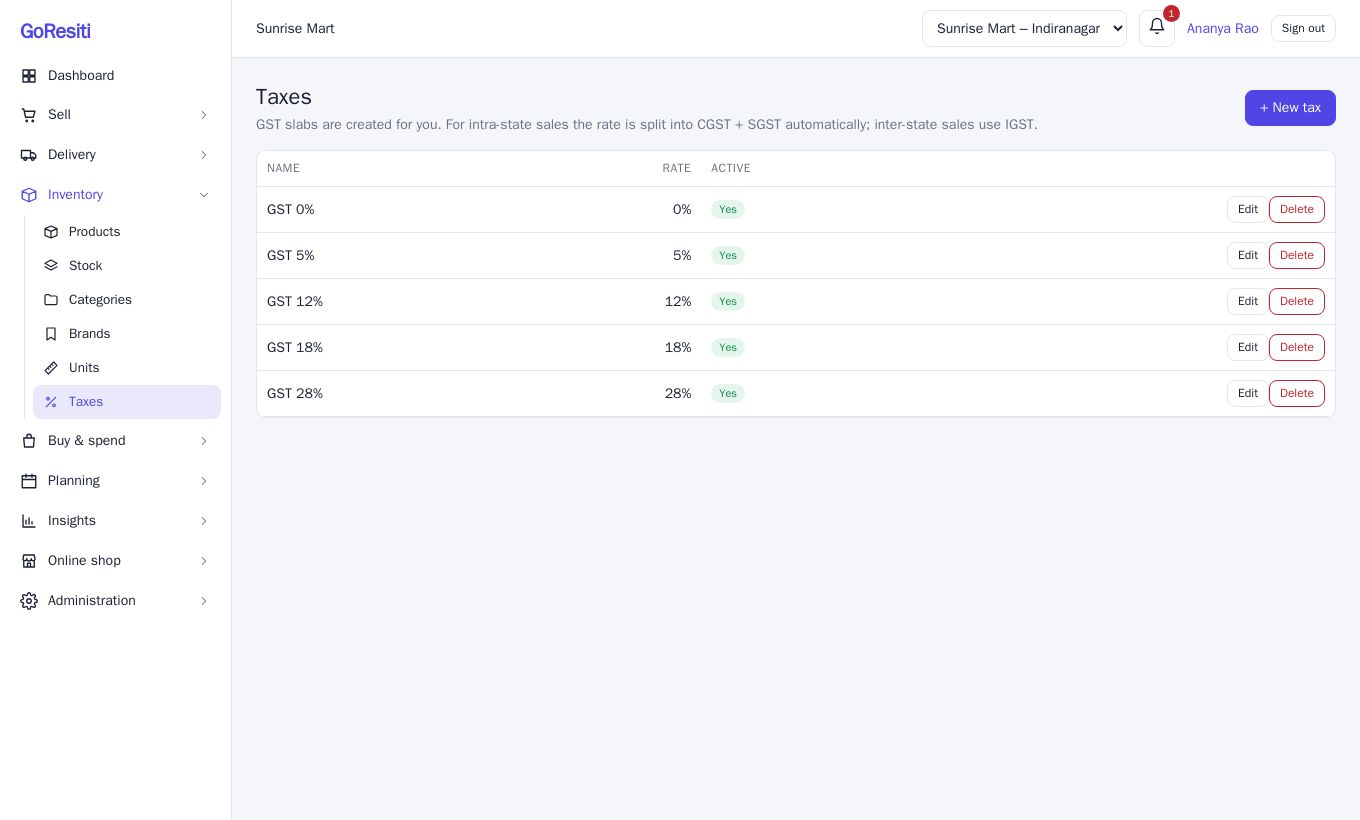
Each tax has a Name, a Rate % and an Active switch. How it is used:
- You choose a tax on each product.
- For sales within your own state, the rate is split into CGST and SGST automatically.
- For sales to another state, IGST is used.
- Whether the price already contains tax is set on the product with Price includes tax, not here.
#Using the lists when you import
When you import products from a file, categories, brands, units and taxes are matched by their names. Create them first, then import. See Products.