Notifications
Send messages to your team now or on a schedule by in-app notice, email or SMS, and read your own inbox from the bell.
Use Notifications to send a message to your staff, for example "Stock count tomorrow at 9" or "New price list is live". You can send it right away or schedule it for later, once or on repeat.
Find it under Planning → Notifications.
#Your inbox (the bell)
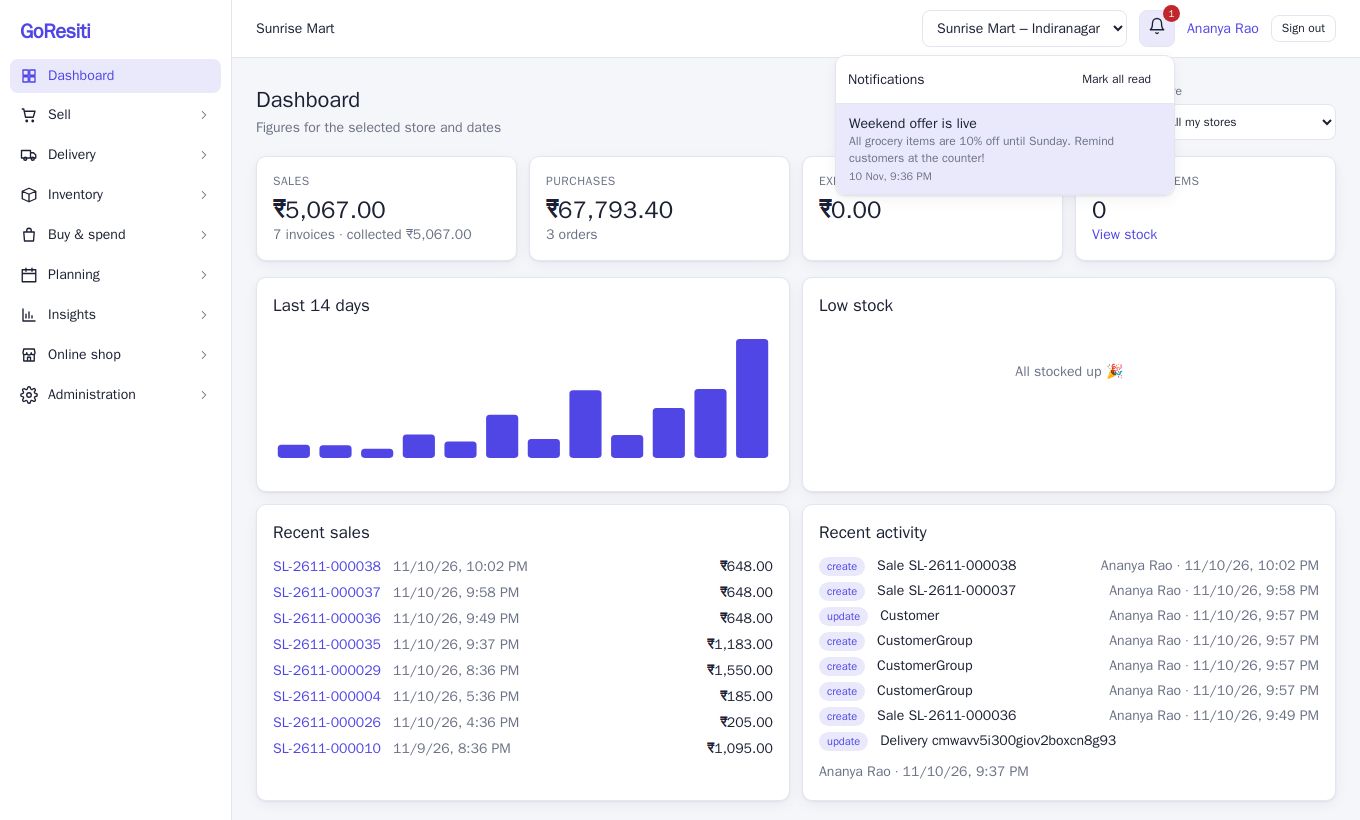
Every signed-in person has an inbox, whatever their role. The bell at the top right shows a red number when you have unread notices.
- Click the bell to see your latest notices. Unread ones have a coloured background.
- Click a notice to mark it as read, or click Mark all read.
- The bell refreshes about once a minute on its own.
#Sending a notification
- Go to Planning → Notifications and click + New notification.
- Type a Title and a Message.
- Under Send to, choose who gets it:
- Everyone – all active users in the workspace.
- A role – everyone with the roles you tick, for example all Cashiers.
- A user group – everyone in the groups you tick. See User groups.
- Specific people – tick individual users.
- Under Send through, tick one or more channels: In-app, Email, SMS.
- Choose Send now or Schedule.
- Click Send (or Schedule).
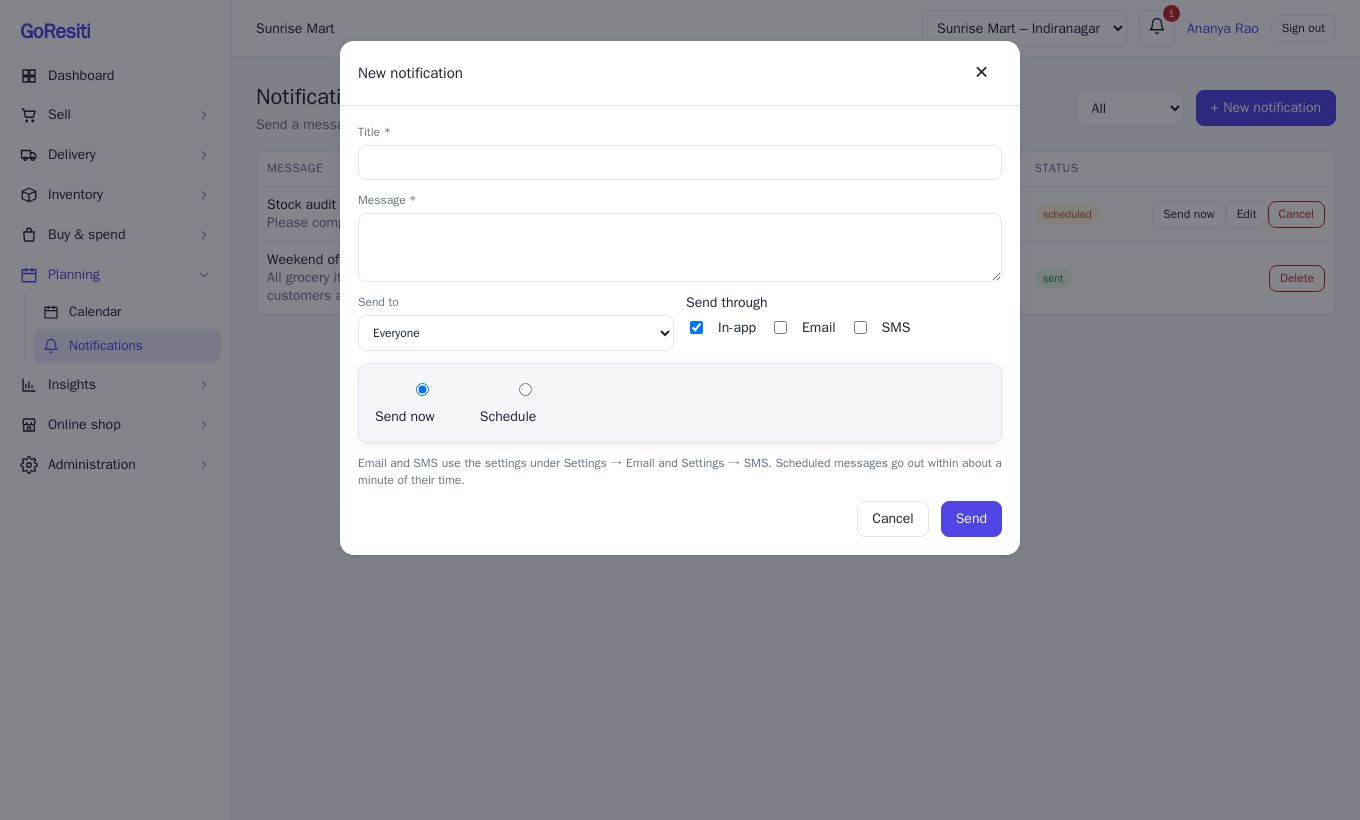
You need to tick at least one channel, and if you pick a role, group or people you must choose at least one. If nobody matches the audience, GoResiti tells you instead of sending.
#The three channels
| Channel | What happens |
|---|---|
| In-app | The notice appears in each person's bell. |
| An email is sent using your email settings. | |
| SMS | A text is sent using your SMS gateway. |
Messages go to your staff (your workspace users), not to shop customers. Email uses each person's email address and SMS uses the mobile number saved on their user profile; anyone without a mobile number is skipped for SMS. Email and SMS use the details you saved under Settings → Email and Settings → SMS. See the settings guide.
#Scheduling and repeating
When you choose Schedule, you set:
- Date & time – when it should go out. Scheduled messages go out within about a minute of that time.
- Repeat – Does not repeat, Every day, Every week or Every month.
- Repeat until – an optional last date for repeating notifications. Without it, a repeating notice keeps going until you cancel it.
#The notifications list
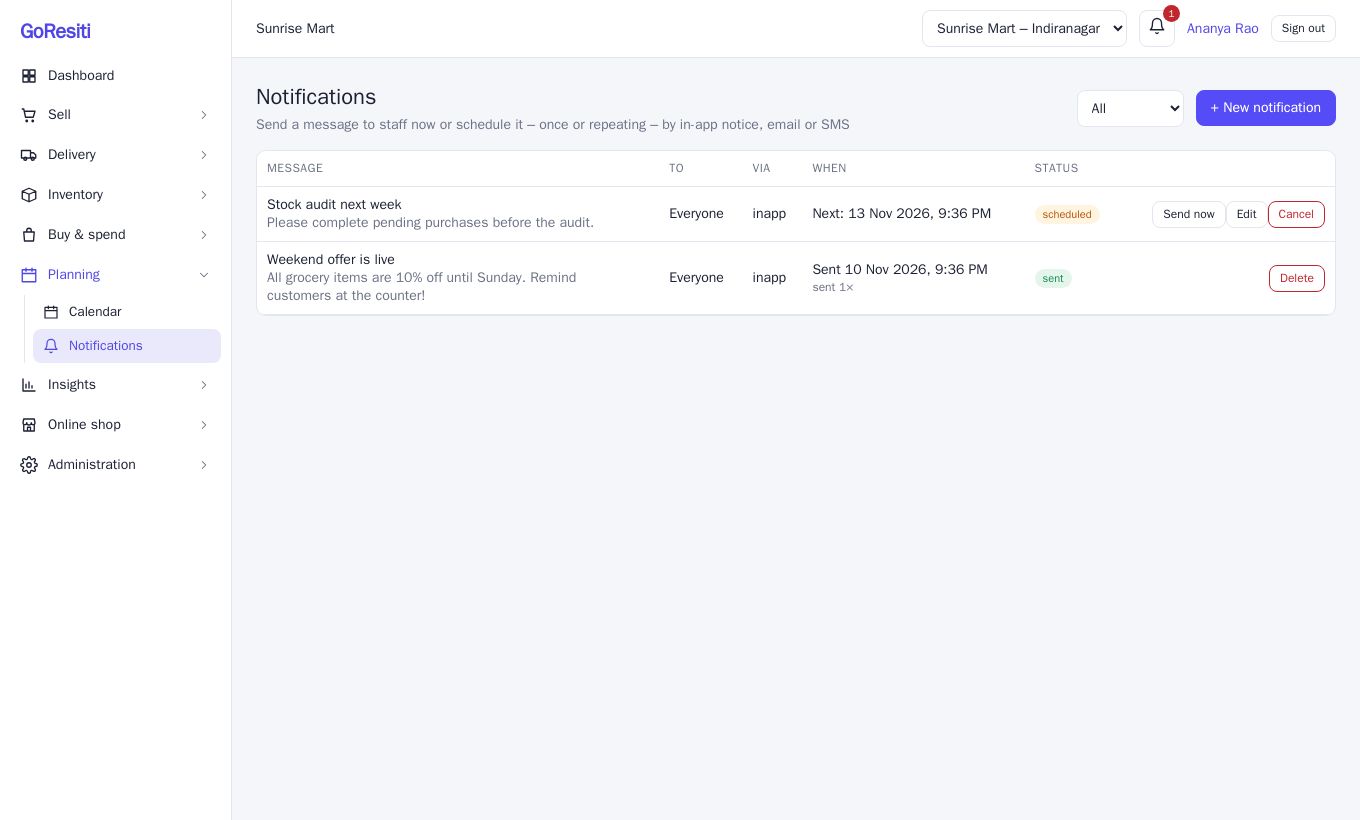
Each row shows the message, who it is for, the channels used, when it will go out (or went out) and its status.
| Status | Meaning |
|---|---|
| scheduled | Waiting for its time. |
| sent | Delivered. Repeating ones show how many times they have been sent. |
| cancelled | Stopped before sending. |
Use the drop-down at the top to filter by status.
For a scheduled notification you can:
- Send now – send it immediately instead of waiting.
- Edit – change the message, audience, channels or time.
- Cancel – stop it from going out.
Sent or cancelled notifications can only be removed with Delete. If an email or SMS could not be sent, the reason appears under the status.