Setting up your online shop
Switch on your online shop, choose how it looks and behaves, set up payments, and see how online orders reach you.
Your GoResiti workspace comes with a ready-made online shop. It shows the products you choose, lets customers sign up, and turns every order into a normal sale in your system, so stock, invoices and reports stay in one place.
#Before you start
- Add your products and categories (see Products and Catalog masters).
- Make sure each product you want online has Show in online shop ticked on its edit page. Products that are inactive or not ticked are hidden from shoppers.
- Set up at least one active store. Online orders are taken from your first active store (sorted by store code), so keep stock there for online items. See Stores.
- Create your delivery charges and content pages (see Coupons, shipping and pages).
#Turning the shop on
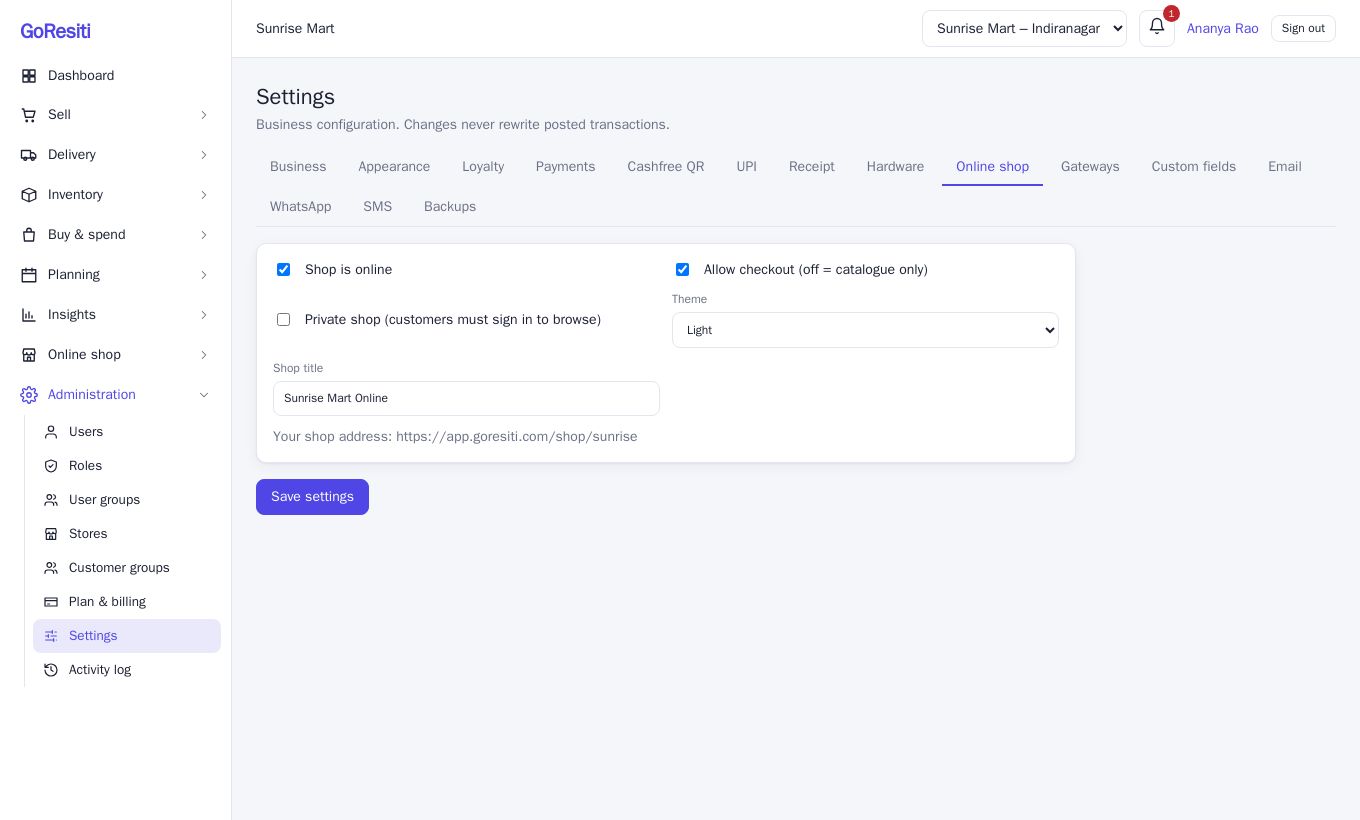
- Open Administration → Settings.
- Click the Online shop tab.
- Tick Shop is online.
- Fill in the options below, then click Save settings.
The tab has these options:
| Option | What it does |
|---|---|
| Shop is online | Turns the shop on or off. When off, visitors see "This shop is not available." |
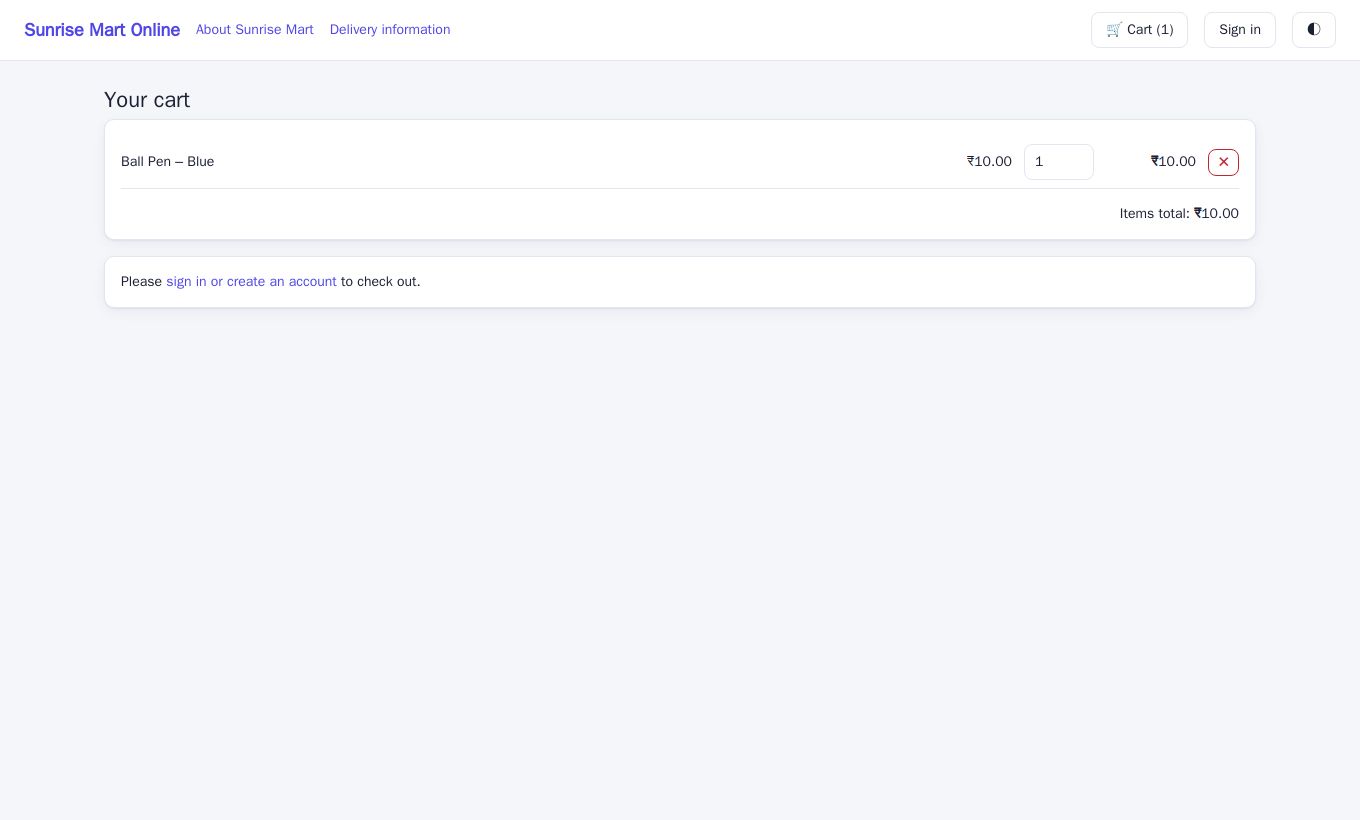
| Allow checkout (off = catalogue only) | When off, shoppers can browse but cannot add to cart or order. The shop shows a "Catalogue only – ordering is disabled" notice. |
| Private shop (customers must sign in to browse) | When on, visitors must sign in before they can see any products. |
| Theme | Light or Dark. Shoppers can still switch with the ◐ button on the shop, and the shop remembers their choice. |
| Shop title | The name shown at the top left of the shop. If empty, your business name is used. |
Under these options the page shows Your shop address. Copy it into your WhatsApp status, Google Business profile, visiting cards and so on. The address is built from your workspace code, in the form /shop/<your workspace code>.
#Payment methods for shoppers
At checkout, shoppers choose how to pay:
- Cash on delivery – the order is placed and confirmed straight away. You collect the money when you deliver.
- UPI, Google Pay, PhonePe and Card – the order is held as Pending until the payment is confirmed to GoResiti by the payment provider. Until then it is not marked paid.
- PayPal and Skrill – the shopper is taken to the provider's own payment page and comes back to your shop afterwards. These appear only if you switch them on, as described below.
#PayPal and Skrill
PayPal and Skrill are set up under Settings → Gateways. This tab appears only when your plan includes payment gateways and the online shop.
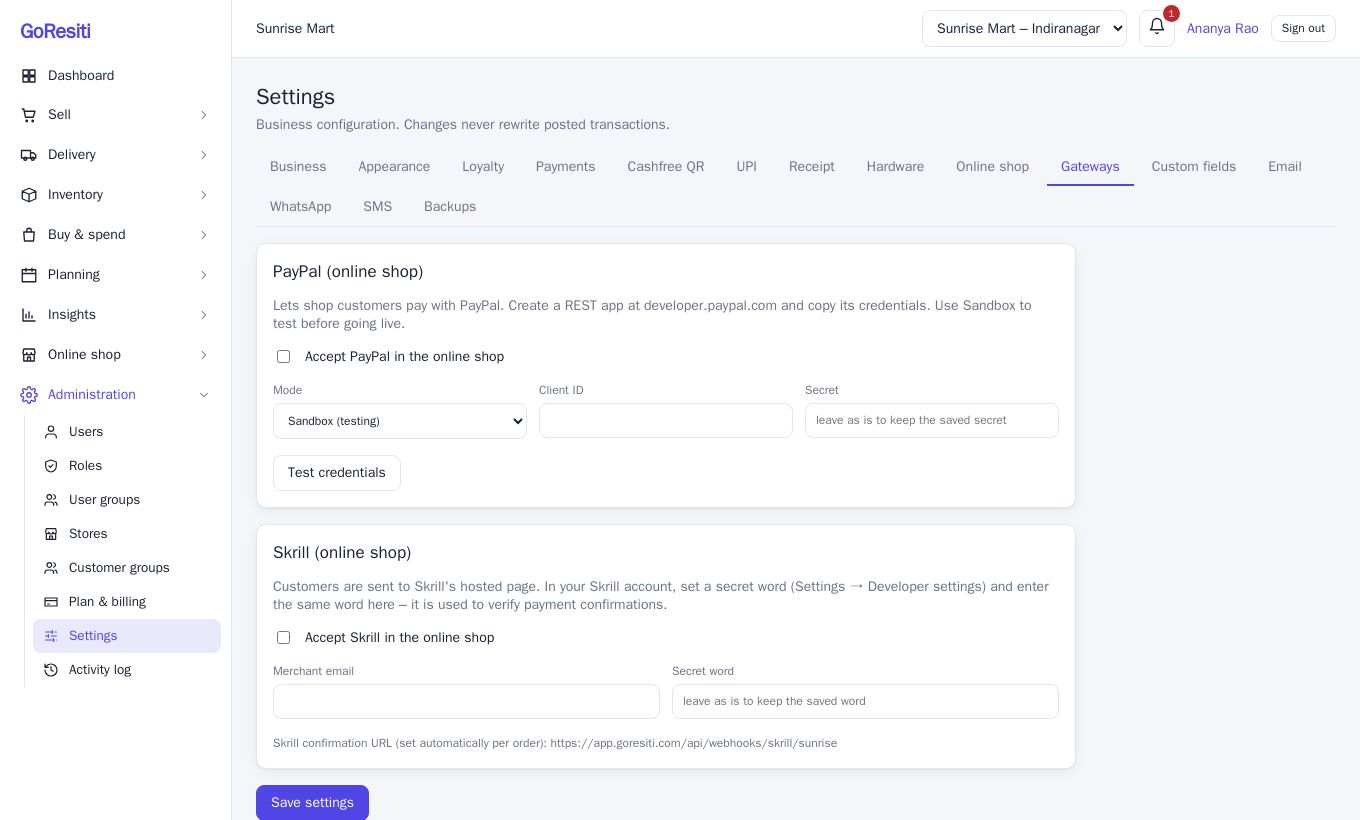
PayPal
- Create a REST app on the PayPal developer site and copy its credentials.
- In Gateways, tick Accept PayPal in the online shop.
- Choose Mode: Sandbox (testing) to try it out, or Live for real money.
- Paste the Client ID and Secret.
- Click Test credentials. A green tick means PayPal accepted them.
- Click Save settings.
Skrill
- In your Skrill account, set a secret word under Settings, Developer settings.
- In Gateways, tick Accept Skrill in the online shop.
- Enter your Merchant email and the same Secret word.
- Click Save settings.
The secret and the secret word are hidden after saving. Leave the box as it is to keep the saved value, and never share them with anyone.
#What happens when a customer orders
- The customer places an order from the cart.
- Stock is reserved immediately. The items are taken off your stock at the moment of ordering, so you cannot oversell them.
- With Cash on delivery, the order is completed straight away and stays unpaid until you collect the money.
- With an online payment, the order is pending. When payment is confirmed it becomes completed. If the customer cancels at the payment page or the payment fails, the order is cancelled and the reserved stock is released automatically.
#Seeing and handling orders
Online orders appear in Sell → Sales like any other sale. Open one to see the customer, items, address, shipping and any coupon. The note on the order says how it was paid, for example "Online order via cod". Orders are created as needing delivery, with the customer's address, so you can assign them in Deliveries if your plan includes delivery management.
- A new shopper is saved in Customers with their email and phone.
- In Reports → Staff performance, online orders show as "Online / system". See Reports.
- If something goes wrong with an order, see Returns and refunds.