Calendar and promotions
Plan events for your team and schedule percentage-off promotions that apply automatically at the POS.
The Calendar is a shared diary for your business. You can use it for two things:
- Events – reminders for your team, such as a stock audit or festival preparation.
- Promotions – a percentage discount that switches on and off by itself during the dates you set.
Find it under Planning → Calendar in the left menu.
#Finding your way around
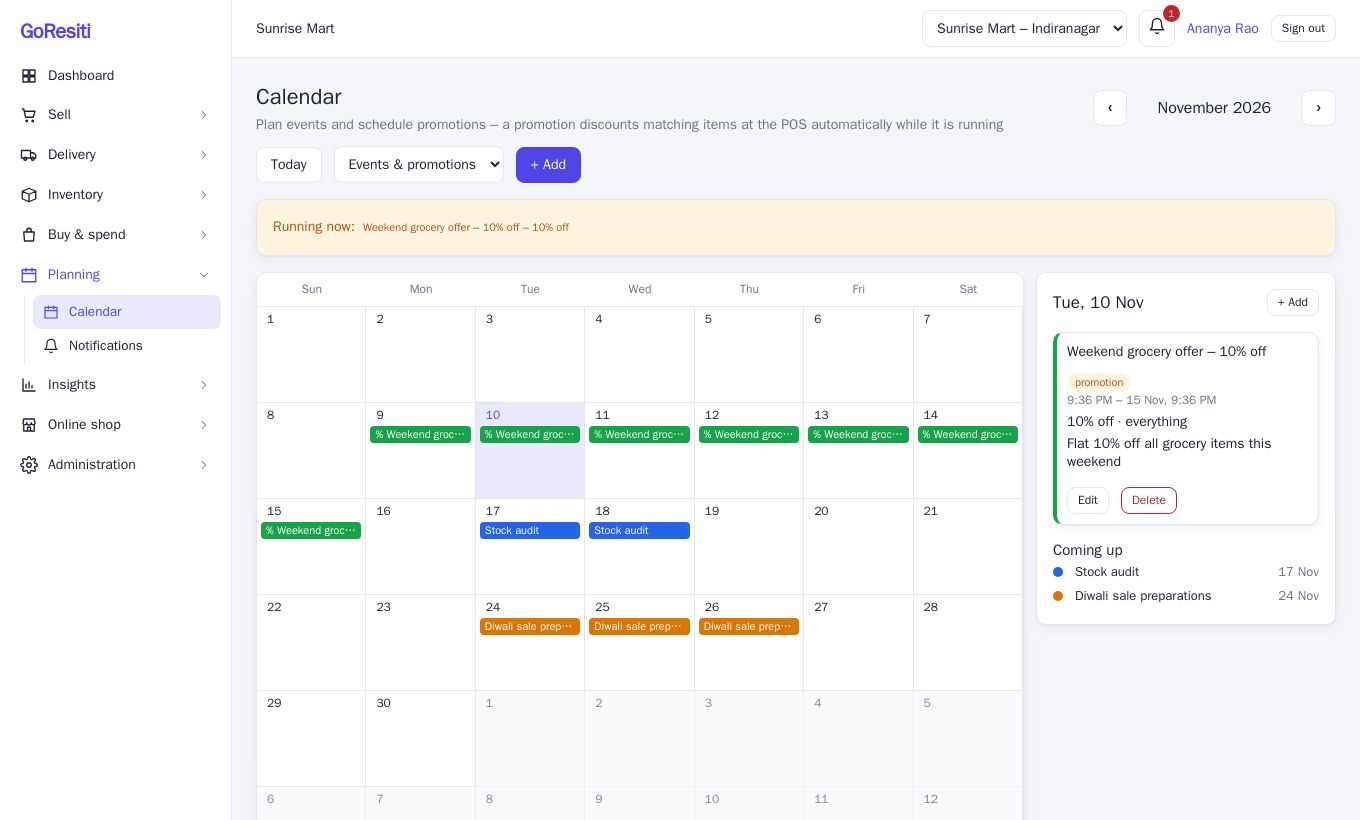
- The month grid shows each event and promotion as a coloured bar. Promotions start with a % sign.
- Use the ‹ and › buttons to change month, and Today to jump back.
- The drop-down next to Today lets you show Events & promotions, Events only or Promotions only.
- Click a day to see its details on the right. Under that, Coming up lists the next few items.
- If any promotion is live right now, an orange strip called Running now lists it at the top.
#Adding an event
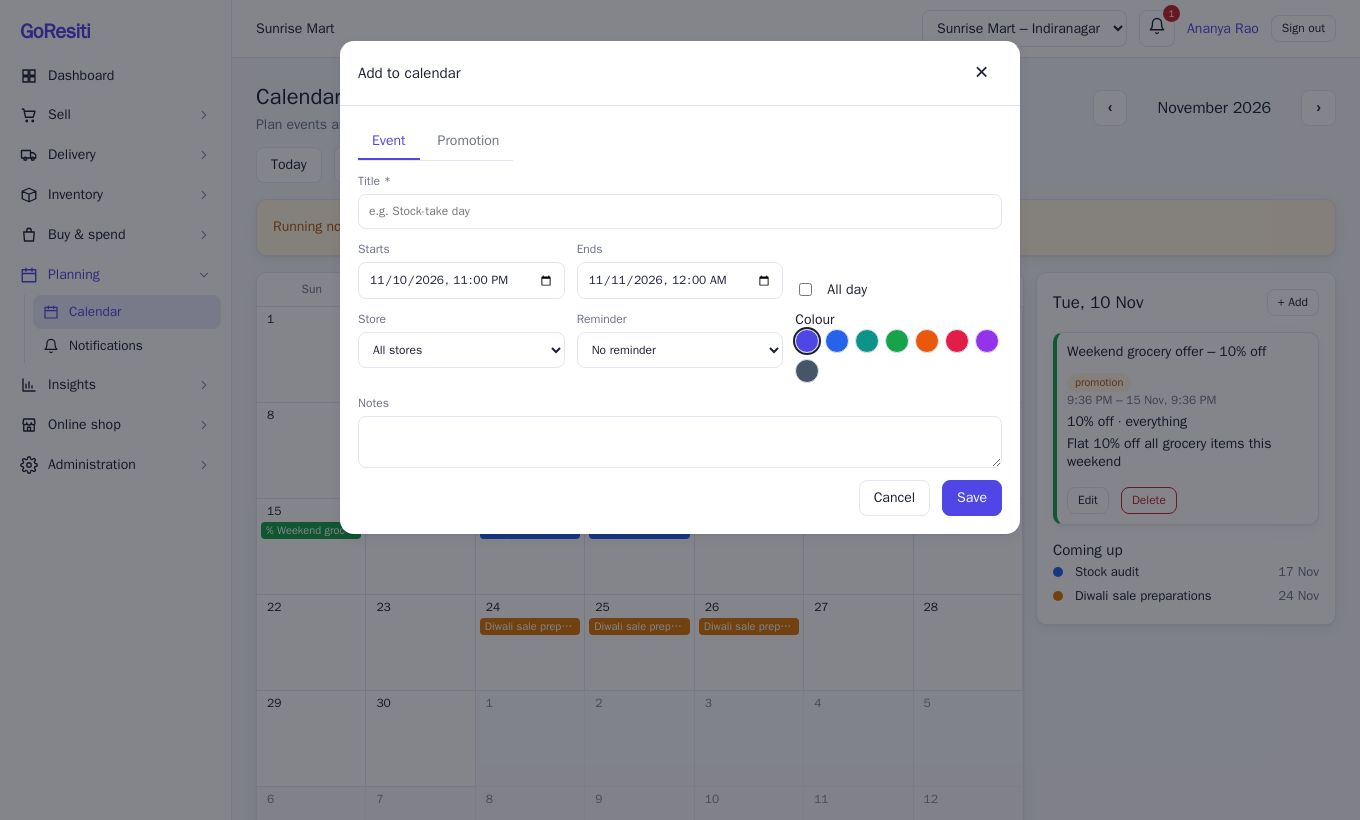
- Click + Add (or click a day, then + Add in the side panel).
- Make sure the Event tab is selected.
- Type a Title, for example "Stock audit".
- Set Starts and Ends. Tick All day if the time does not matter.
- Optionally choose a Store, a Reminder and a Colour, and add Notes.
- Click Save.
#Reminders
The Reminder drop-down can send everyone in your workspace an in-app notice before the event starts: 15 minutes, 1 hour, 1 day, 2 days or 1 week before. The notice appears in the bell at the top of the screen (see Notifications). If the reminder time has already passed when you save, no reminder is sent.
#Scheduling a promotion
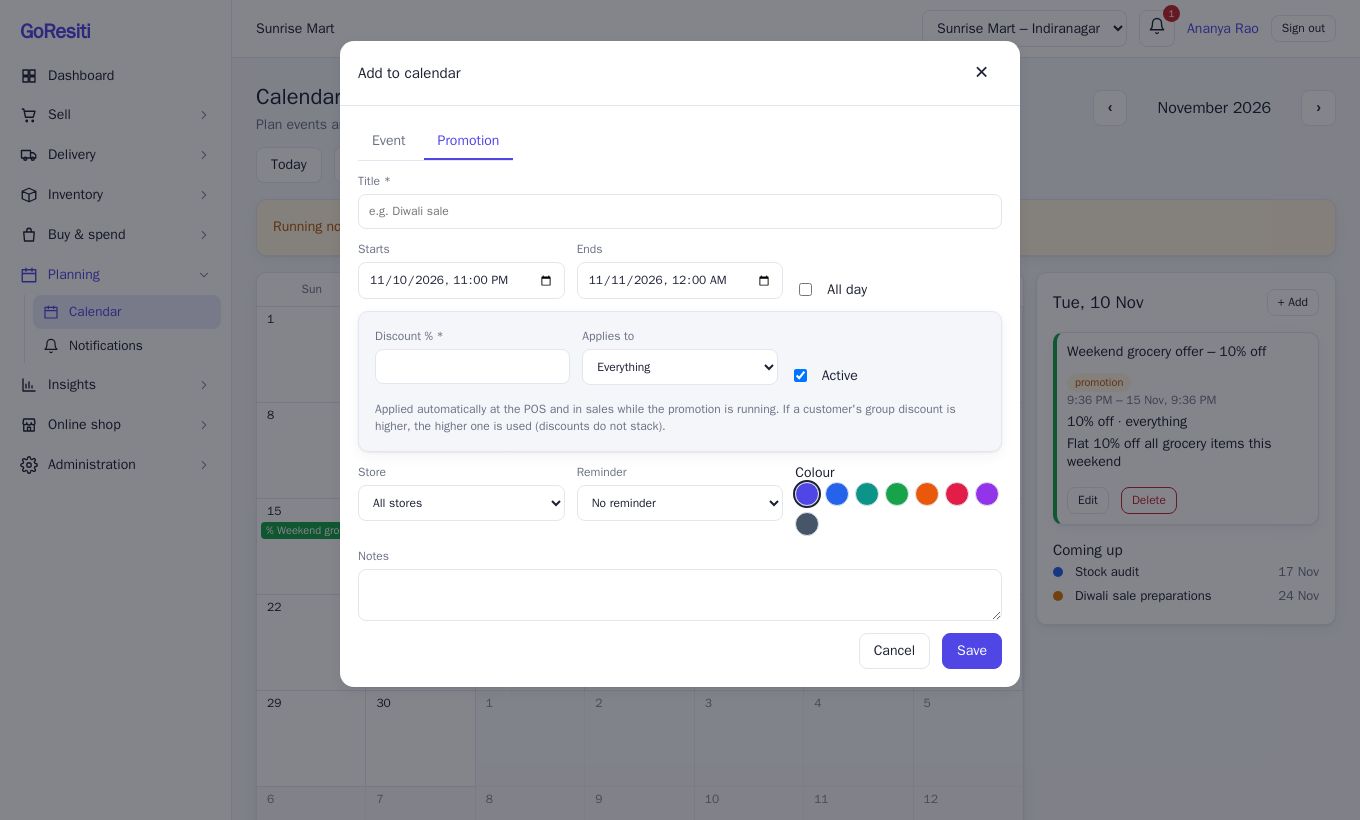
A promotion gives a percentage discount on matching items while it is running. You do not have to remember to turn it on or off.
- Click + Add and choose the Promotion tab.
- Type a Title, for example "Diwali sale".
- Set Starts and Ends.
- Enter the Discount %.
- Under Applies to, choose:
- Everything – every product.
- Selected categories – tick the categories.
- Selected products – search and tick the products.
- Choose a Store if the promotion is only for one store. Leave it on All stores for every store.
- Keep Active ticked, then click Save.
To pause a promotion without deleting it, edit it and untick Active. It shows as paused in the side panel.
#How promotions work at the POS
While a promotion is running for a store, matching items get its discount automatically in the POS and in sales. Cashiers do not have to type anything:
- A Promotions running strip lists the live promotions on the POS screen.
- Each discounted line in the cart shows a small badge with the promotion name and the percentage off.
Two rules to remember:
- The best discount wins. If several promotions match the same item, the highest percentage is used. If the customer also belongs to a customer group with a discount, the higher of the two applies. Discounts are never added together.
- Dates and store matter. A promotion only applies between its start and end times, and only in the store you chose (or in all stores).
#Editing and deleting
Click an item in the calendar, then use Edit or Delete in the side panel. Deleting an item also cancels its scheduled reminder. Sales already made keep the discount they were given.