Stores
Add and manage your shops or branches, keep their GST details correct, add registers, and switch between stores.
#What a store is
A store is one of your shop locations or branches. Stock, sales, registers and receipts all belong to a store. Even a single-shop business has one store, created when the workspace was set up.
The store's State is important for GST. It decides whether a sale is charged CGST and SGST (customer in the same state) or IGST (customer in another state).
#See your stores
Go to Administration → Stores. The list shows each store's code, name, city, GSTIN, number of registers and status.
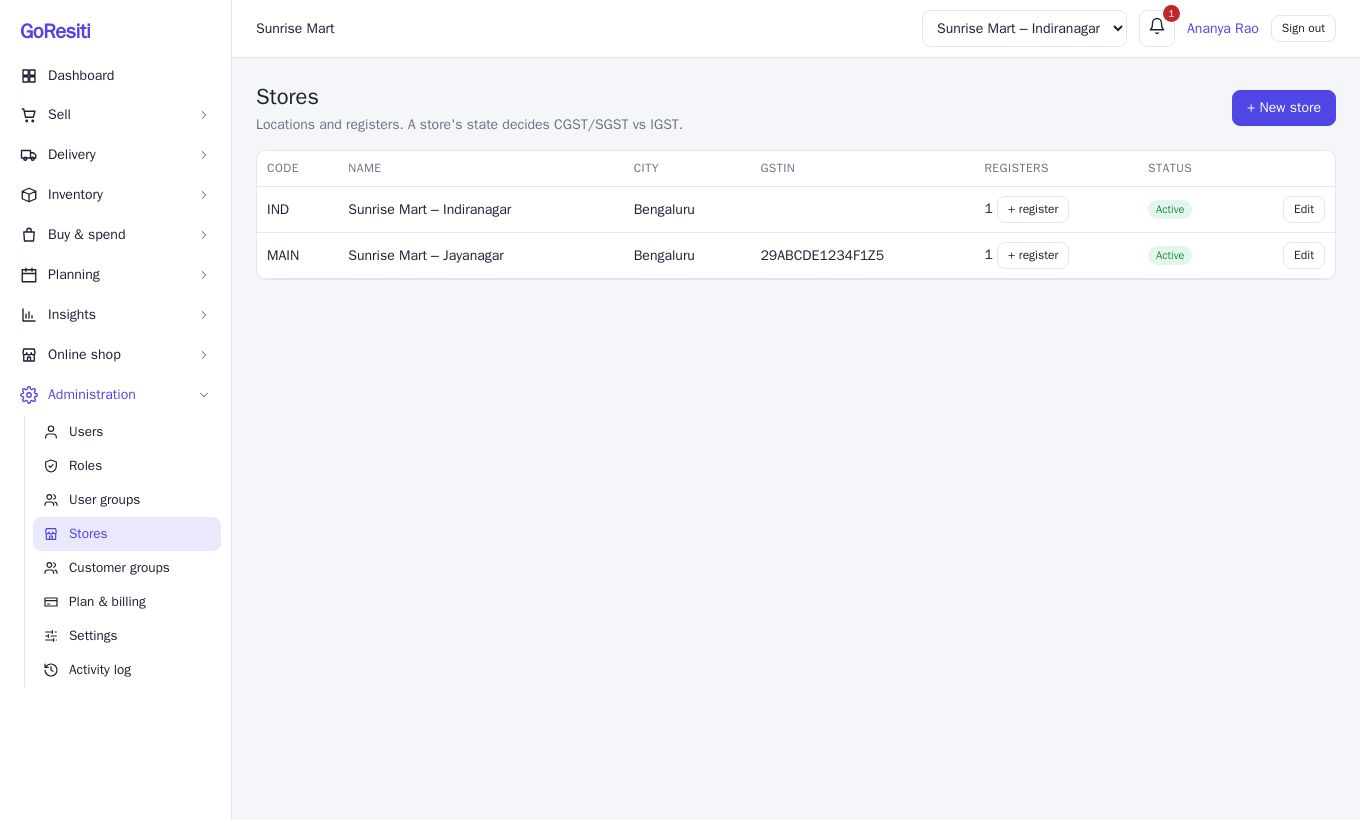
You need the View stores permission to open this page.
#Add a store
You need the Manage stores permission.
- Click + New store.
- Fill in the details:
- Code: a short code of up to 10 characters (for example IND). It is shown in capitals.
- Name: the store name.
- Address and City.
- State (GST state code): choose the state the store is in.
- GSTIN: the store's GST number, if it has one.
- Phone.
- Receipt footer: a line printed at the bottom of this store's receipts.
- Keep Active ticked and click Save.
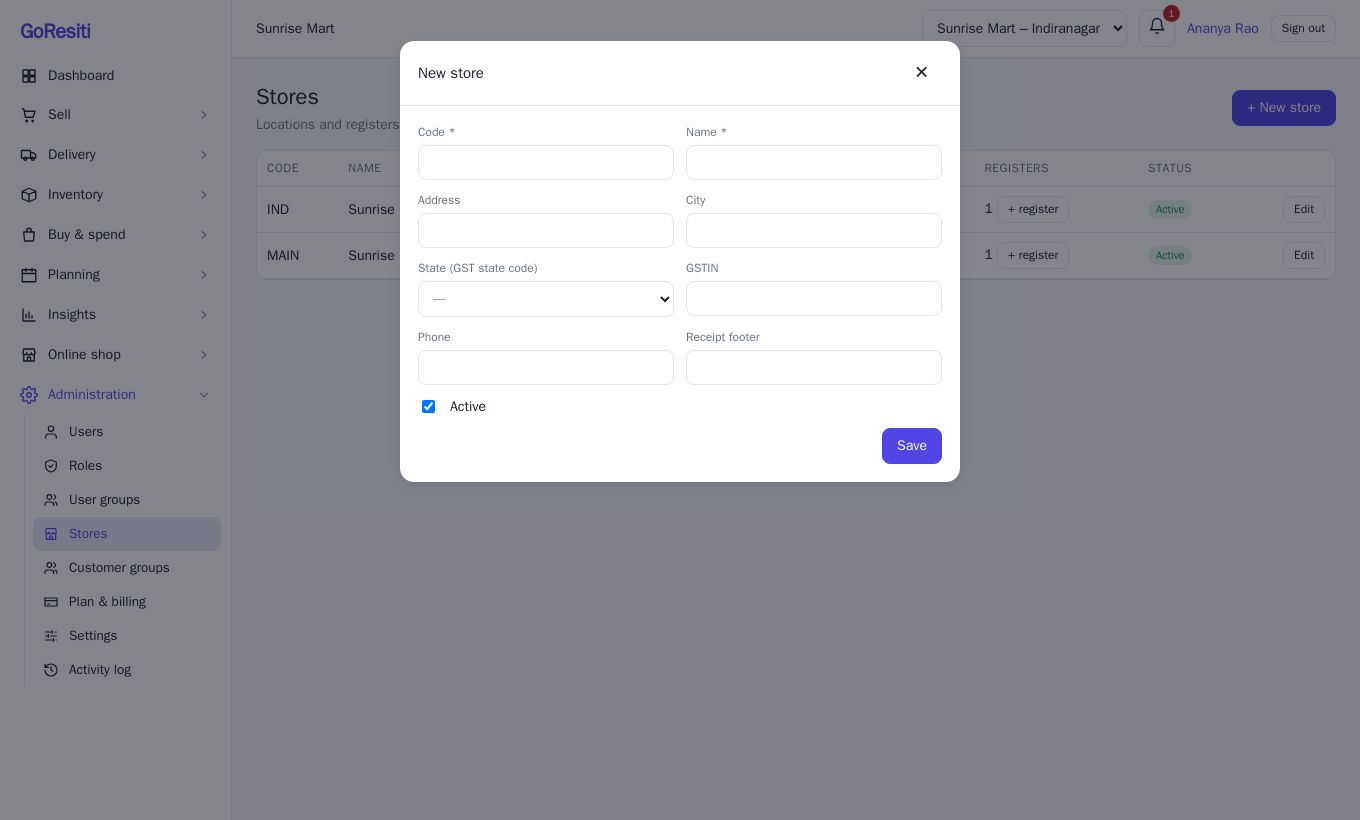
A new store automatically gets a register called Register 1, so you can start selling there once someone opens a register session.
#Edit or close a store
Click Edit next to a store to change any detail. To stop using a store, untick Active and save. Inactive stores no longer appear in the store switcher, and they stop counting towards your plan's store limit. Past sales and stock records are kept.
#Registers in each store
A register is a cash counter or till inside a store. In the Stores list, click + register in the Registers column and type a Register name (for example "Counter 2"). You need the Manage registers permission.
Cashiers open and close register sessions from the POS. See Registers and POS.
#Who can use which store
Each user is given access to all stores or to specific stores (see Users and roles). People only see stores they are allowed to use, and they cannot see or change other stores' stock and sales.
#Switch the active store
If you can use more than one store, a store dropdown appears at the top of the screen. Choose a store there and screens such as the POS, stock and sales show that store's data. If you only have one store, its name is shown instead of a dropdown.