Deliveries
Track orders that go to the customer's door, assign agents, schedule slots and collect cash on delivery.
#Before you start
Delivery management is available on plans that include it. See Plan and billing. Users need delivery permissions to see or manage deliveries.
A delivery is created from a sale that is marked for delivery, with the customer's address. See Sales and invoices and Selling at the POS. Each such sale appears on the Deliveries page.
#The Deliveries page
Open Delivery → Deliveries. You can look at it in two ways using the Board and List buttons (your choice is remembered).
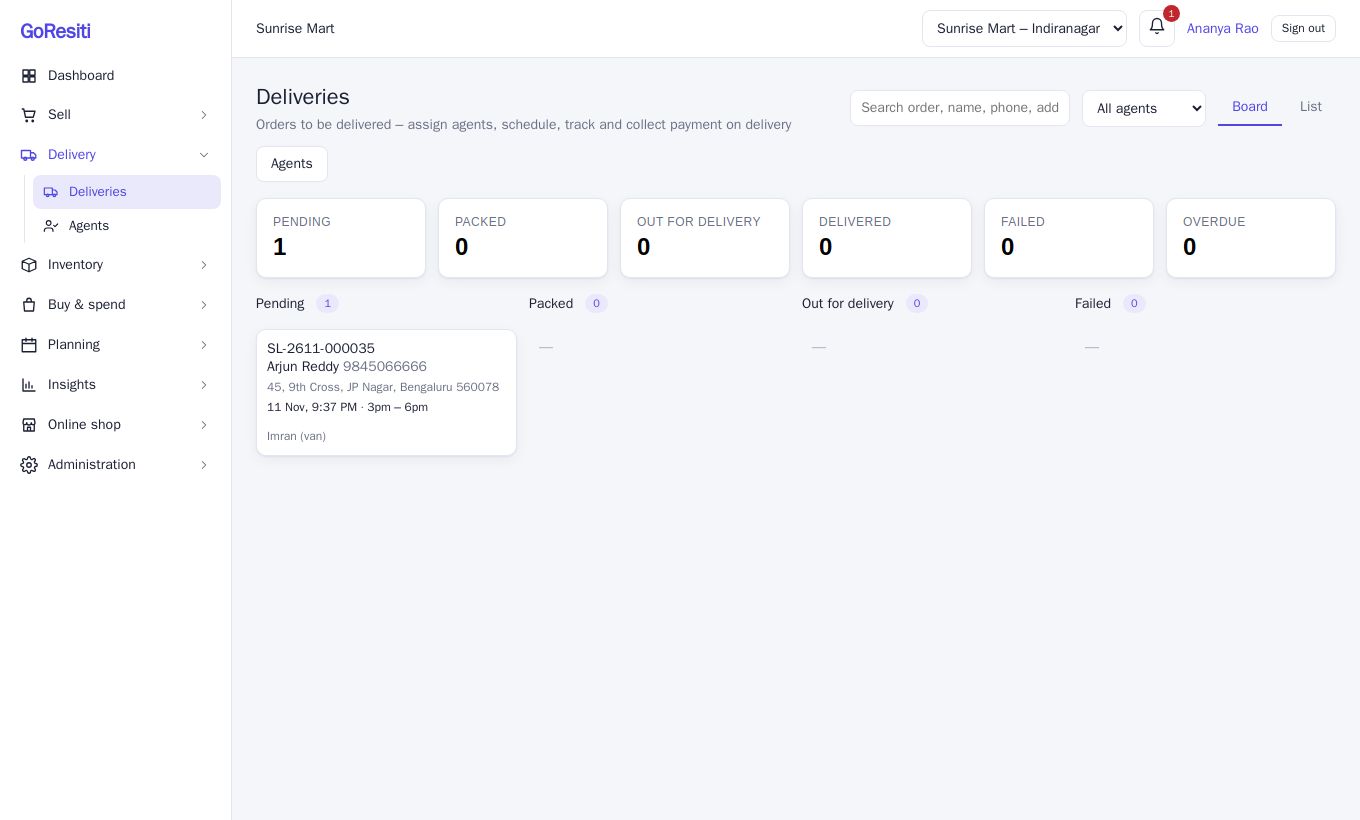
- Board shows columns for Pending, Packed, Out for delivery and Failed. Each card shows the sale number, customer, phone, address, scheduled time and agent. A COD badge shows the amount to collect, and overdue appears when the scheduled time has passed.
- List shows the same information in a table, including To collect.
The tiles above show counts for each status plus Overdue. Click one to filter. You can also search by sale number, name, phone or address, and filter by agent.
#How a delivery moves
| Status | Meaning | Can move to |
|---|---|---|
| Pending | Order received, not yet packed | Packed, Out for delivery, Delivered, Cancelled |
| Packed | Ready to go | Pending, Out for delivery, Delivered, Cancelled |
| Out for delivery | With the agent | Delivered, Failed, Packed, Cancelled |
| Delivered | Finished | Final |
| Failed | Attempt did not work | Pending (to reschedule), Cancelled |
| Cancelled | Stopped | Final |
#Working on a delivery
Click a card or row to open it. You can see the customer, address, items, a link to the invoice and the full history of who changed what and when.
#Assign an agent and schedule
While a delivery is still open you can change:
- Name, Phone and Delivery address.
- Delivery agent: pick from your active agents.
- Date & time and Time slot: 9am – 12pm, 12pm – 3pm, 3pm – 6pm or 6pm – 9pm.
- Instructions, for example "call at gate".
- Click Save changes.
#Update the status
Use the buttons under Update status, such as Mark packed, Out for delivery, Mark delivered, Delivery failed or Cancel delivery. Then confirm. You can add a Note. Two extras:
- For Delivery failed, you must give a Reason it failed, for example "customer not home".
- For Mark delivered, you can type who it was Received by.
#Collecting cash on delivery
If the customer still owes money on the sale, the delivery shows Cash on delivery with the balance to collect.
- Choose Mark delivered.
- Keep Collect payment now ticked.
- Check the Amount, choose a Method (cash, upi, card or bank) and add a Reference if you have one.
- Click Confirm.
The payment is added to the sale, which updates its paid and due amounts. You cannot collect more than what is due.
#Delivery slip
Click Print delivery slip to print a sheet for the agent with the address, items, amount to collect and a space for the customer's signature.
#Delivery agents
Agents are the people who deliver. They do not sign in to GoResiti. You simply assign them to deliveries. Open Delivery → Agents (or click Agents on the Deliveries page) to manage them.
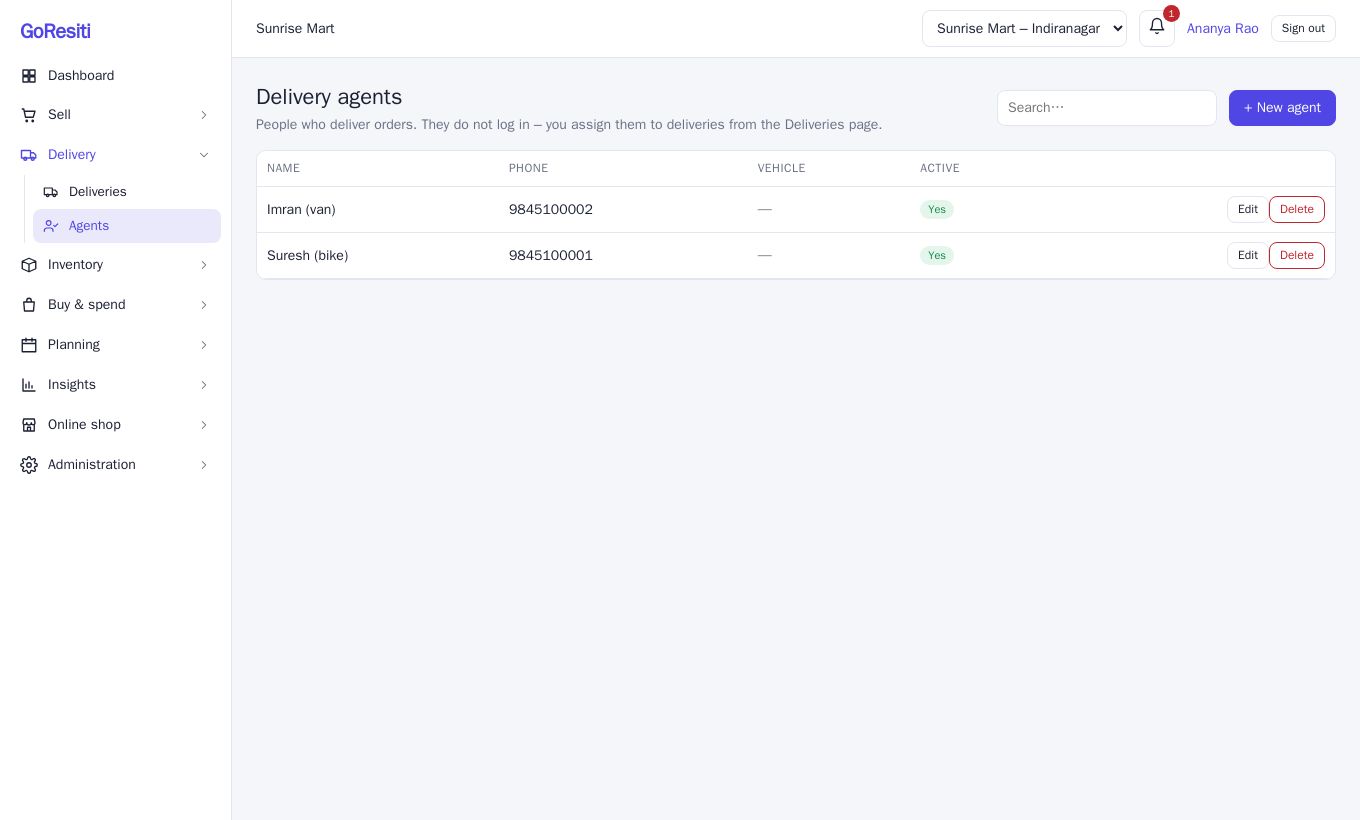
Each agent has a Name, Phone, Vehicle / number plate and an Active switch. Only active agents can be assigned. Untick Active for someone who has left rather than deleting them.