Products
Add, edit, import and label the items you sell, and keep an eye on what is running low.
#What the Products page shows
Open Inventory → Products to see your catalogue. Each row shows the product image, Code, Barcode, Name, Category, Type, Cost, Price, Tax and Stock for the store you have selected at the top of the screen.
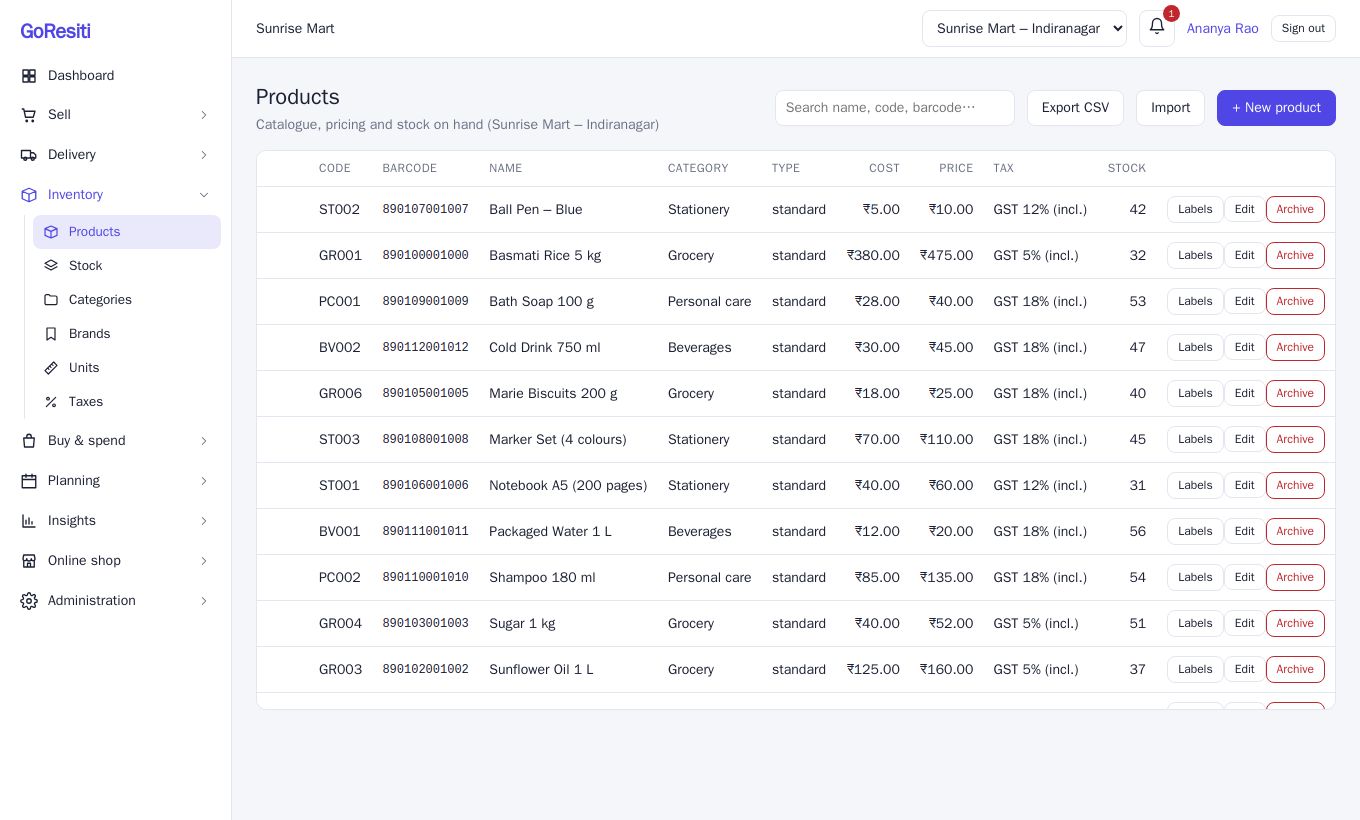
A few things to notice:
- Tax shows (incl.) when the selling price already includes tax.
- If the stock number is at or below the product's alert level, it turns red.
- A product with variants shows a small badge such as "2 variants".
- Archived products appear faded with an Archived badge.
#Searching
Type a name, code or barcode in the search box and press Enter. This is also the quickest way to find a product when a barcode scanner types into the box.
#Buttons at the top
| Button | What it does | Needs |
|---|---|---|
| Export CSV | Downloads your product list as a file | Export permission |
| Import | Adds many products from a CSV file | Import permission and a plan with product import |
| + New product | Opens the new product form | Create permission |
#Adding a product
- Click + New product.
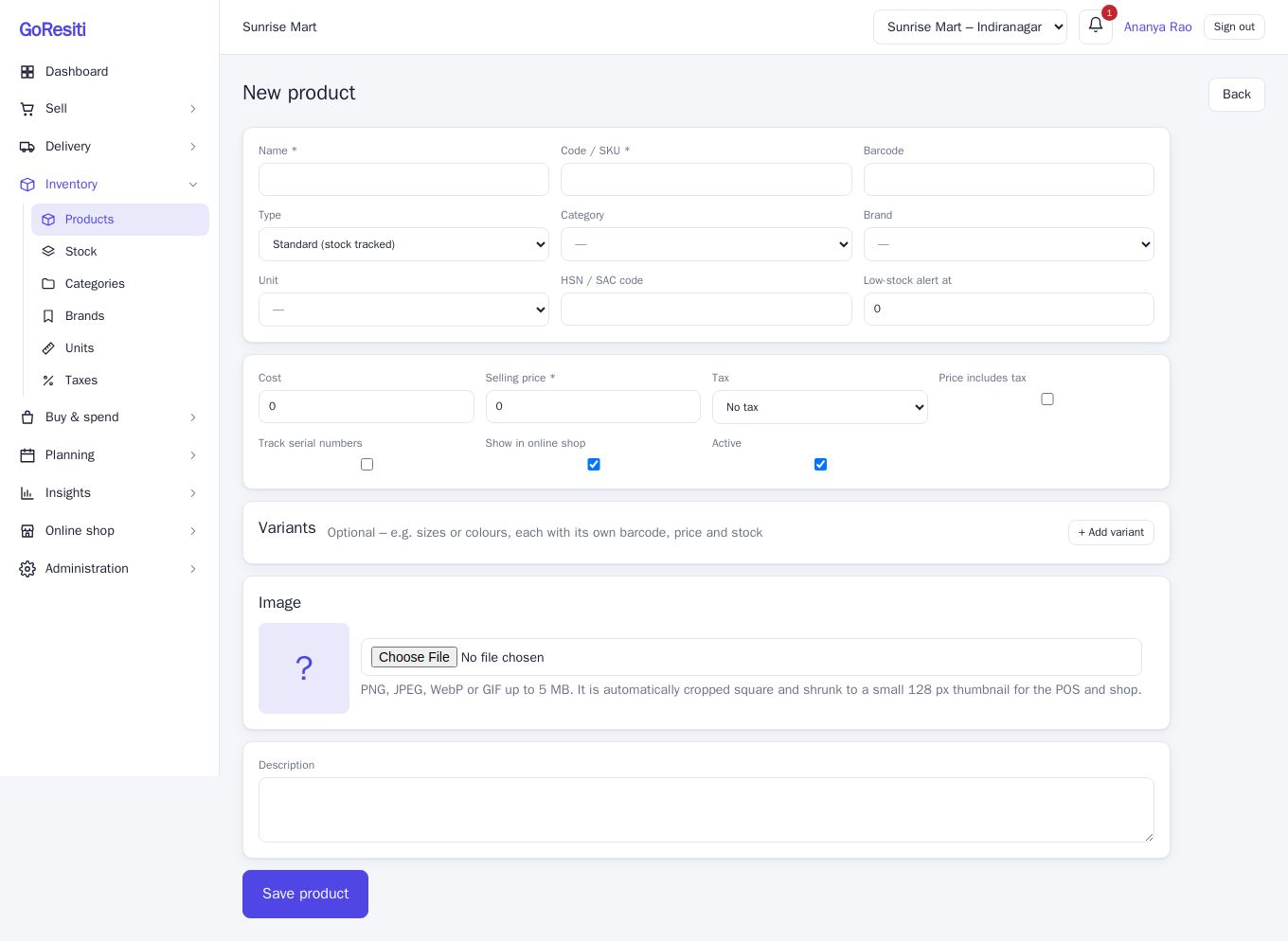
- Fill in the details (see the table below). Only Name, Code / SKU and Selling price are required.
- Click Save product.
| Field | What to enter |
|---|---|
| Name | What staff and customers will see on bills. |
| Code / SKU | Your own unique code for the item. Codes cannot repeat. |
| Barcode | The number printed on the pack, or one you generate for labels. |
| Type | Standard (stock tracked) for normal items, Combo / bundle for a pack made of other products, or Service (no stock) for things like stitching or repair. |
| Category, Brand, Unit | Pick from the lists you set up in Categories, brands, units and taxes. |
| HSN / SAC code | Your GST classification code, if you use one. |
| Low-stock alert at | When stock falls to this number or below, the product is marked Low. |
| Cost | What you pay for it. |
| Selling price | What the customer pays. |
| Tax | The GST slab. Leave as No tax for exempt items. |
| Price includes tax | Tick this if your selling price already contains GST (MRP-style pricing). Leave it clear if tax should be added on top. |
| Track serial numbers | Tick for items such as phones where each piece has its own serial number. |
| Show in online shop | Appears only if your online shop is switched on. |
| Active | Untick to hide the product from selling without deleting it. |
#Variants
Use variants for sizes or colours. Click + Add variant and give each one a Name, optional Barcode and optional Price. If you leave the price blank, the variant uses the product's price. Each variant has its own stock.
#Combo products
Choose Combo / bundle as the type, then use + Add component to pick the products and quantities that make up the combo. When you sell a combo, each component is deducted from stock.
#Image and description
Under Image, upload a PNG, JPEG, WebP or GIF file up to 5 MB. It is cropped square and shrunk automatically so the POS stays fast. You can add a Description below it.
#Editing, archiving and reactivating
- On the Products list, click Edit next to the product.
- Change what you need and click Save product.
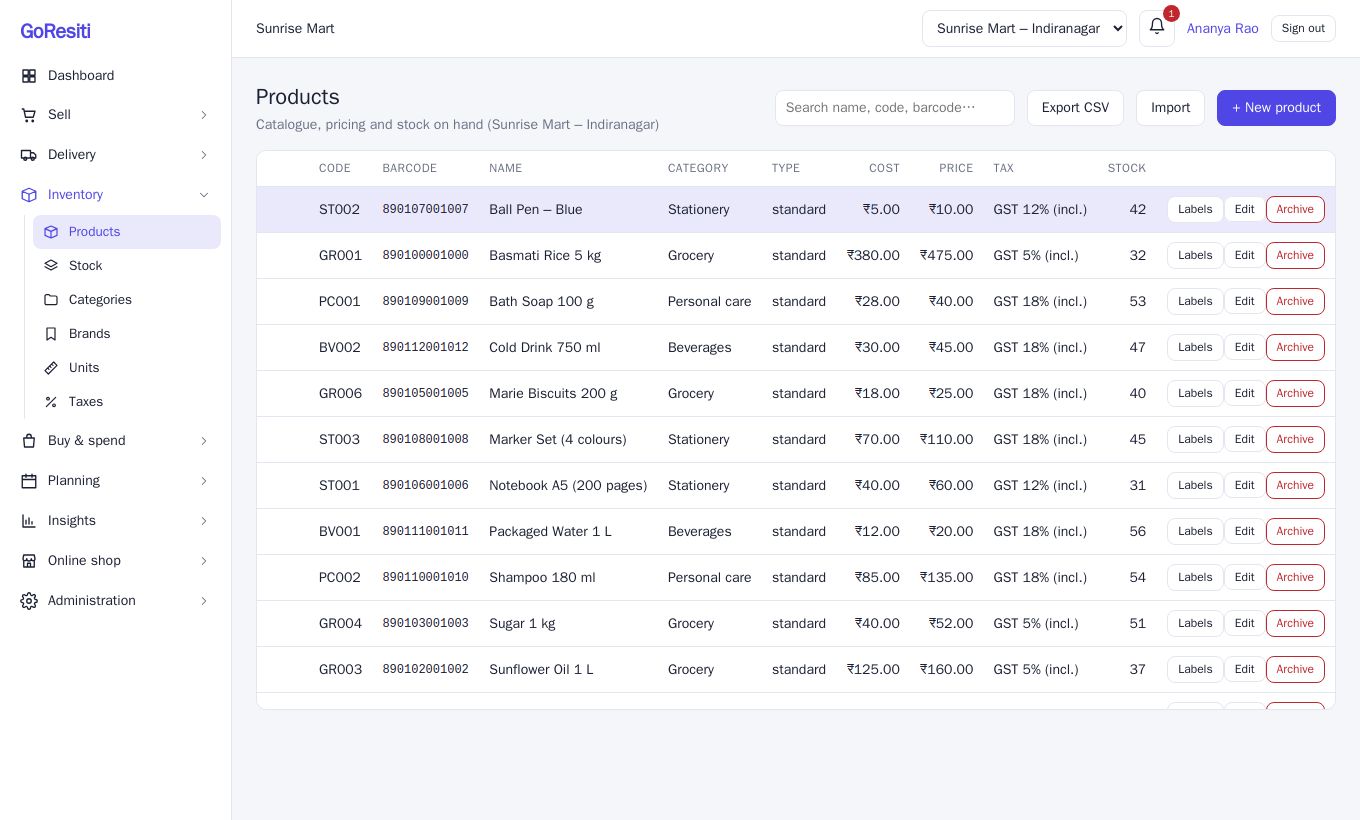
To stop selling an item, click Archive on the list (you will be asked to confirm). Archived products can no longer be sold, but your old bills and reports keep working. GoResiti archives instead of deleting so history stays correct. To bring a product back, open it with Edit, tick Active and save.
#Importing products from a file
Import is available on plans that include product import, for users with import permission.
- Click Import.
- Click Download template to get a sample CSV with the right columns.
- Fill it in. The columns are
code, name, barcode, hsn, category, brand, unit, tax, cost, price, alertQty, openingQty. If you work in Excel, save the sheet as CSV before uploading. - Choose the Store for opening stock. This is where the quantities in
openingQtyare added. - Choose your file. GoResiti checks every row first and shows how many are valid and how many have errors. Nothing is saved yet.
- Fix any problems (click Download error details for a list) and upload again, or go ahead with the valid rows by clicking Import ... valid rows.
Category, brand, unit and tax are matched by name, so spell them exactly as they appear in your lists (for example GST 18%). Codes that already exist, or are repeated in the file, are rejected.
#Low stock alerts
Each product has a Low-stock alert at number. When on-hand stock reaches that number or below, it shows in red on the Products list and as Low on the stock page. Use the Low stock only tickbox in Stock to see everything that needs reordering.
#Printing barcode labels
- On the Products list, click Labels next to a product.
- Set the number of Copies and, if needed, change the Barcode value. It starts as the product's barcode, or its code if there is no barcode.
- Click Print and choose your label printer in the browser's print window.
The label shows the product name, a scannable barcode and the price. Label size comes from your hardware settings. See the Settings guide.