Purchases
Record what you buy from suppliers, receive it into stock and track what you still owe.
#How purchases work
A purchase records goods you buy from a supplier. It has two parts that you control separately:
- Status tells you about the goods: Pending (ordered, not yet in your stock), Received (added to stock) or Cancelled.
- Payment tells you about the money: unpaid, partial or paid.
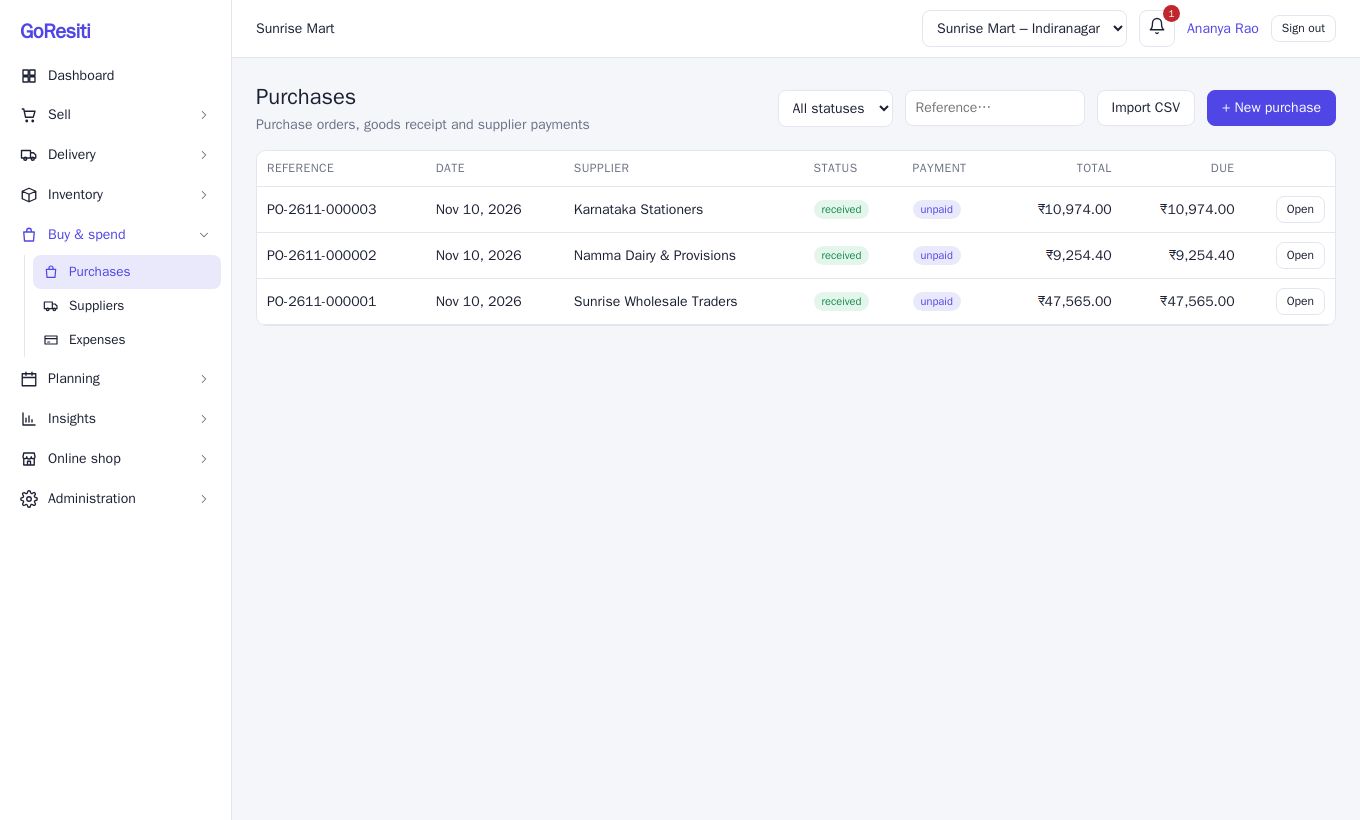
Open Buy & spend → Purchases to see the list with Reference, Date, Supplier, Status, Payment, Total and Due. Use the status drop-down and the reference search box to narrow it down.
#Creating a purchase
Before you start, make sure the supplier exists (see Suppliers) and the products are in your catalogue.
- Click + New purchase.
- Choose the Store that will receive the goods and the Supplier.
- Set the Date, and type the supplier's bill number in Supplier invoice #. This makes it easy to match later.
- Add a line for each item: pick the Product, then enter Qty, Unit cost and an optional line Discount. The unit cost is filled in from the product's cost, and you can change it.
- For serial-tracked products, type the serial numbers, separated by commas. You need exactly one per unit.
- Add an Order discount or Shipping / other charges if the supplier's bill has them.
- Click Save purchase.
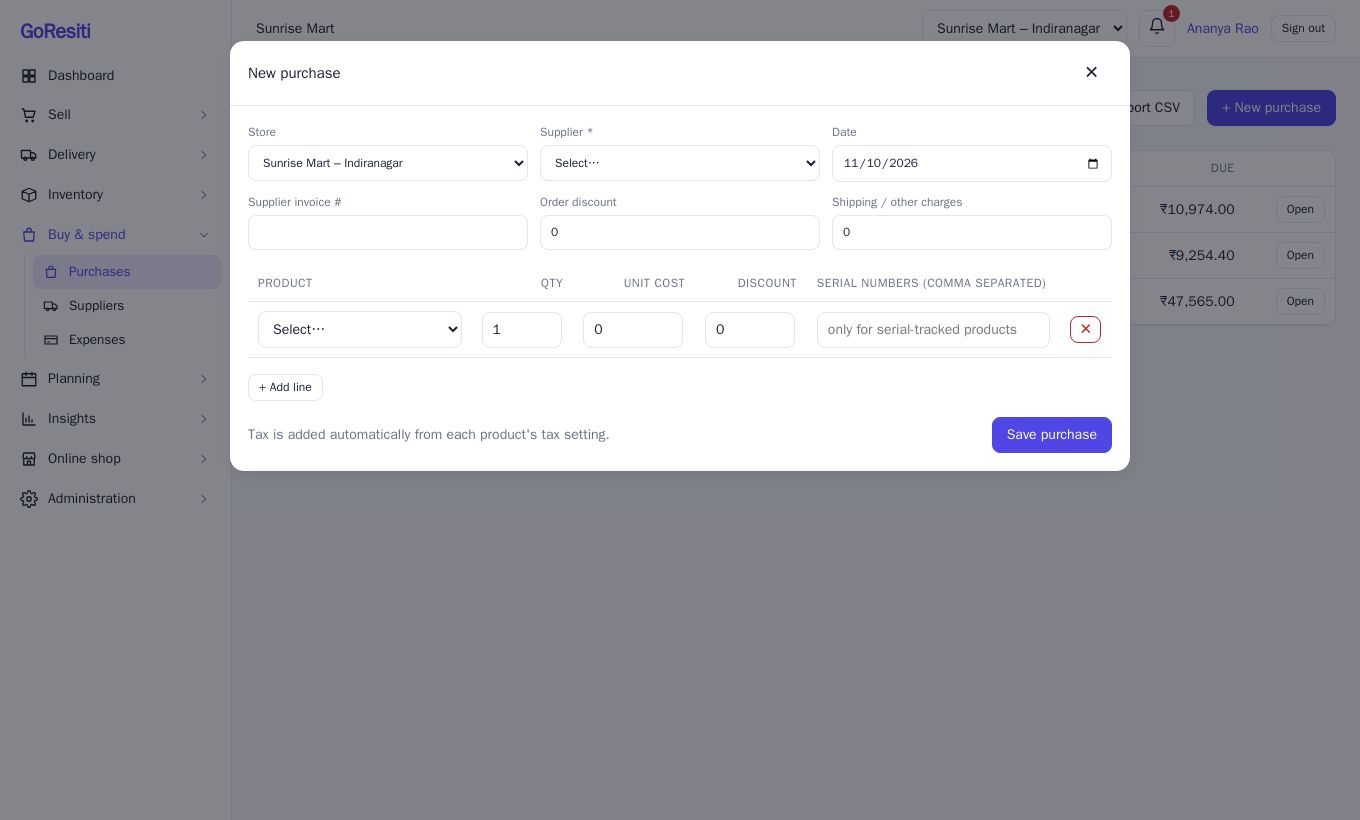
Tax is added automatically from each product's tax setting, and the total is worked out for you. Only stock-tracked products can be bought, not services or combos.
#Editing a pending purchase
Open the purchase with Open, then click Edit. You can change the details only while it is still Pending.
#Receiving stock
When the goods arrive:
- Click Open next to the purchase.
- Check the items against the delivery.
- Click Receive stock and confirm.
What happens when you receive:
- The quantities are added to the chosen store's stock, and each change shows in Stock history.
- Serial numbers you entered are recorded.
- The product's Cost is updated to this purchase's unit cost.
- The status changes to Received. This happens once only, so a double click will not add stock twice.
Receiving needs the receive permission. If you need to stop an order, click Cancel while it is still pending. A received purchase cannot be cancelled this way.
#Paying the supplier
You can pay in full or in parts.
- Open the purchase.
- Under Payments, choose a method (cash, upi, bank, card or other), enter the Amount, add a Reference such as a UPI or cheque number, and click Record payment.
The paid and due amounts update straight away, and you cannot pay more than what is due. Recording payments needs the purchase payment permission.
#Importing purchases from a file
If you have many bills, click Import CSV (visible to users with purchase import permission).
- Use one row per item. Rows with the same invoice number become one purchase.
- Columns:
invoice,supplier(exact name),date(optional),code(product code, barcode or SKU),qty,cost,discount(optional). - Download the template inside the window to get the right layout.
- Re-importing an invoice that was already imported is skipped.
- If you have receive permission, you will see an option to receive the stock immediately. Otherwise the imported purchases stay Pending.