Returns and refunds
Take items back from a customer, decide whether they go back on the shelf, and refund the right amount.
When a customer brings something back, record it as a return. The sale stays as it was, the returned items can go back into stock, and the refund is recorded against your register so the drawer balances.
Returns are available on the Growth plan and above. You need the sales.refund permission, which cashiers have by default. See Users and roles.
#Return items from the POS
This is the quickest way at the counter.
- On the POS, click ↩ Return at the top.
- Search by invoice number (for example SL-2611-000012), or pick from Recent sales at this store. Click Select.
- For each item, type how many are coming back in Return qty. The table shows how many were Sold and how many are still Eligible. Return all eligible fills everything in.
- Choose a Reason: Defective / damaged, Wrong item, Customer changed mind, Price issue, or Other.
- Choose Refund via (cash, card, upi and so on, from the methods you have switched on).
- Tick or untick Put items back in stock.
- Check the Estimated refund and click Process return.
A message confirms the return number and refund amount.
#Return items from a sale
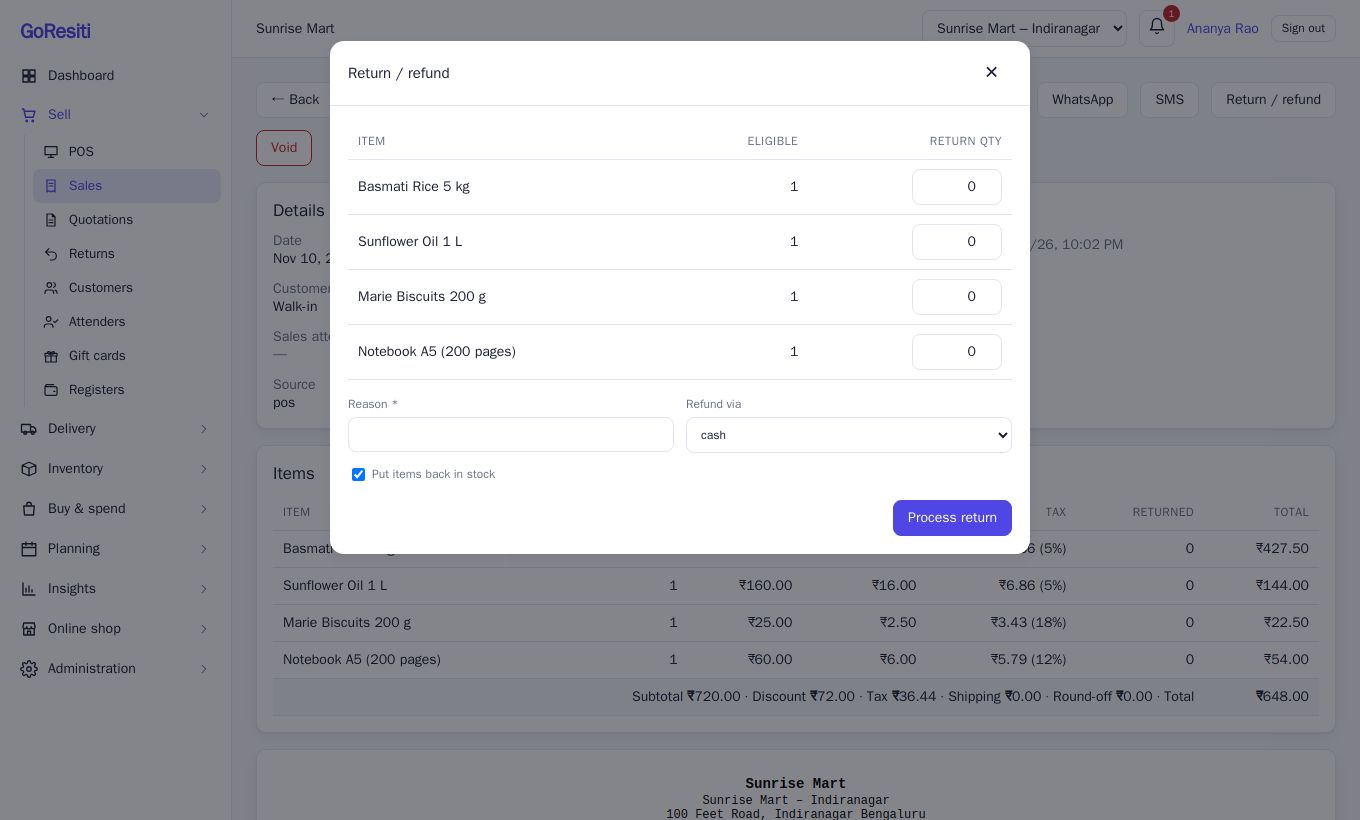
You can also start from the sale itself. Open it from Sales and invoices and click Return / refund. The window lists items still eligible. Enter quantities, a reason and the refund method, then click Process return.
#Restock or not?
- Put items back in stock ticked: the quantity is added back to the store's stock. Use this for good items that can be resold.
- Unticked: stock stays unchanged. Use this for damaged items you will throw away.
#How the refund is worked out
The refund is the price the customer actually paid for those items, including GST and after any discount. If you return only part of a line, the refund is in proportion. When the last items of a line are returned, the system makes the refund add up exactly to the line total, so there are no paisa left over.
The refund can never be more than what was really paid on that sale minus earlier refunds. For example, on a credit sale where only half was paid, the refund stops at the amount received.
If the customer earned loyalty points on the sale, some points are taken back in proportion to the refund, never below zero.
#Rules and limits
- Only completed sales can be returned. Voided sales cannot.
- You cannot return more than was sold, across all earlier returns.
- Return window. Your owner sets this in Settings → Business as Return window (days, 0 = unlimited). After that many days a return is refused with a message. The owner account is not blocked by the window.
- The refund is recorded in the open register session of the person who processes it, so it shows up in the cash count when you close. Cash refunds reduce the expected cash.
- A sale that already has a return cannot be voided.
#The Returns list
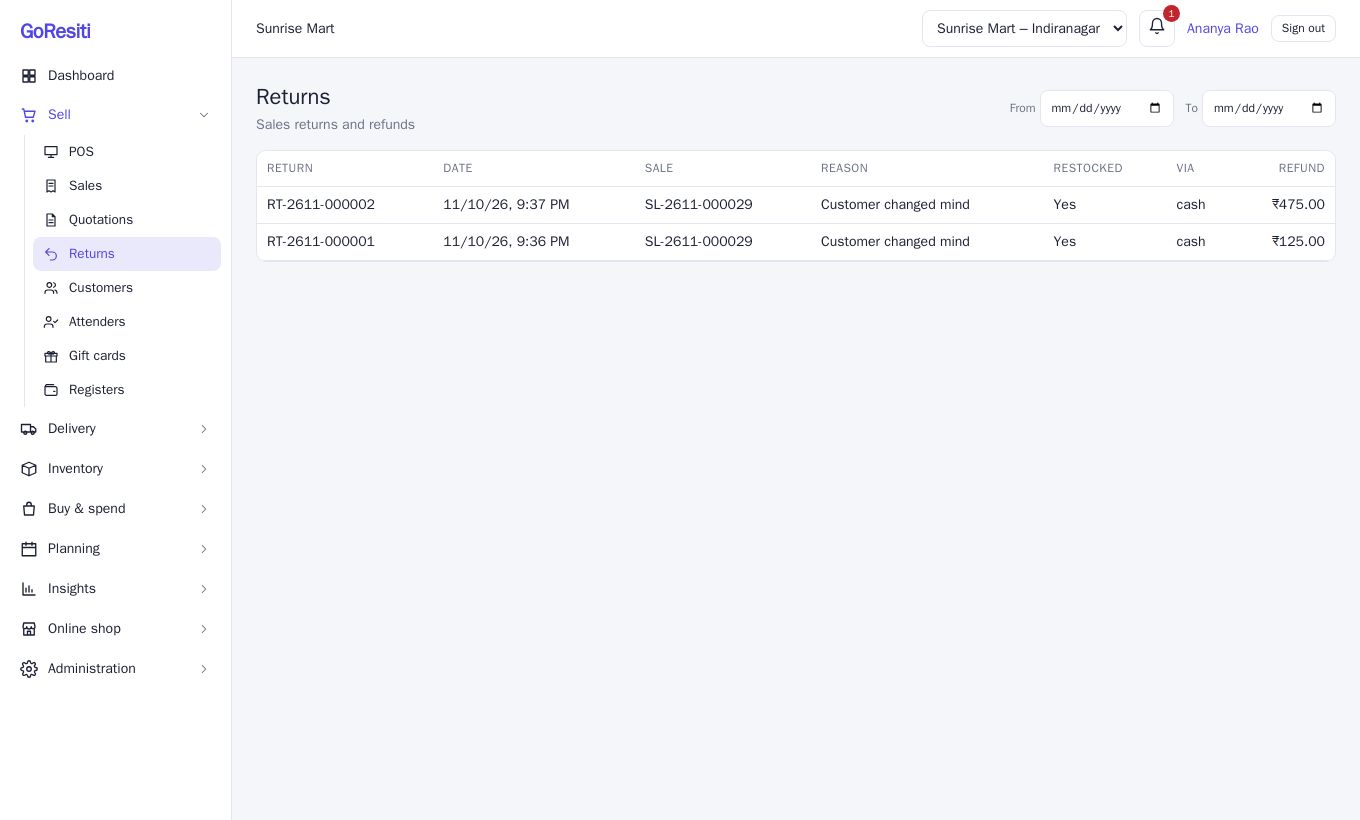
Open Sell → Returns to see every return. Columns are Return (RT numbers), Date, Sale, Reason, Restocked (Yes or No), Via (refund method) and Refund. Use From and To to filter by date. You need sales.view to see the list.
On the sale detail page, returned quantities appear in the Returned column and a Returns box lists each return.