Customers
Keep your customer list, avoid duplicates, give group discounts and track loyalty points.
Saving customers lets you find them quickly at the POS, send them invoices, give loyalty points and offer group discounts. Selling to a walk-in without a customer record always works too.
Open the list from Sell → Customers. Anyone with customers.view can see it and customers.manage can add and edit. Cashiers have both by default.
#The customers list
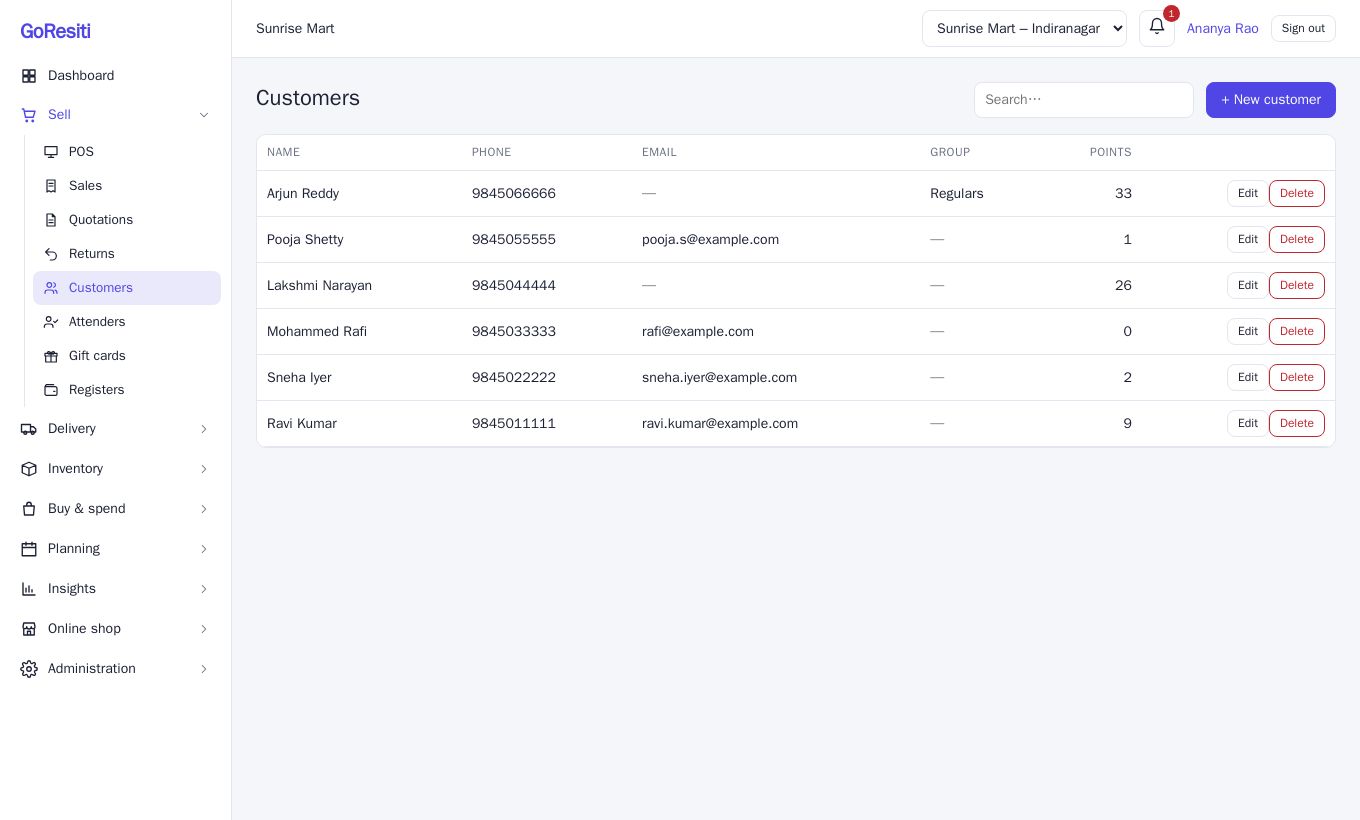
Columns are Name, Phone, Email, Group and Points (loyalty balance). Type in the Search… box to find someone. Each row has Edit and Delete.
#Add a customer
- Click + New customer.
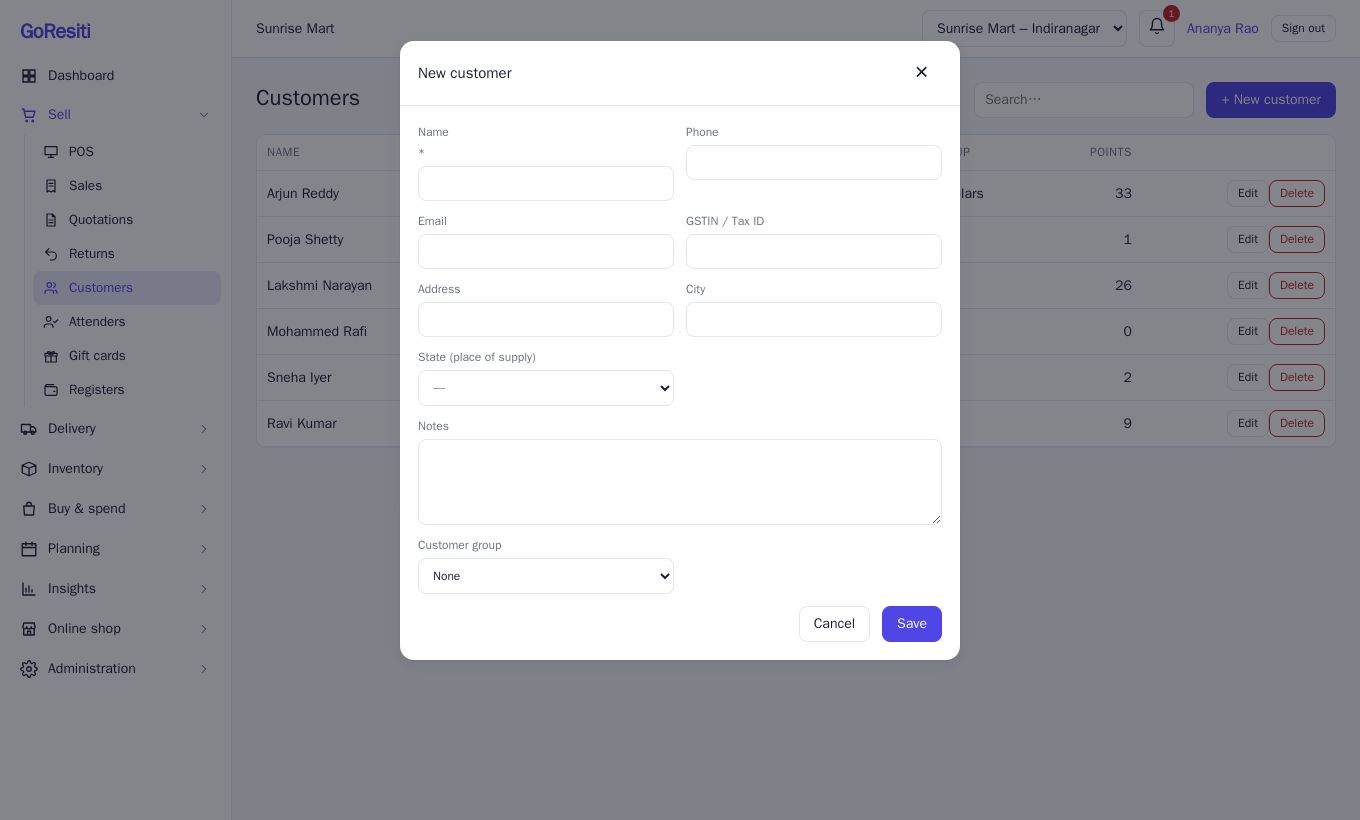
- Fill in the Name (required). The rest is optional but useful: Phone, Email, GSTIN / Tax ID, Address, City, State (place of supply) and Notes.
- Choose a Customer group if you use groups.
- Click Save.
You can also add a customer during a sale: type their name or phone in the POS Customer box and click + New.
#Avoid duplicates
When you add a customer at the POS, the system checks the phone and email. It matches phone numbers by the last ten digits, ignoring spaces, dashes and +91. If someone already has the same phone or email, you see This looks like an existing customer with a Use this customer button. You can still choose Create anyway & use if it really is a different person.
#Customer groups and group discounts
Groups let you give regular customers, such as wholesale buyers or staff, an automatic discount. Customer groups are available on the Growth plan and above.
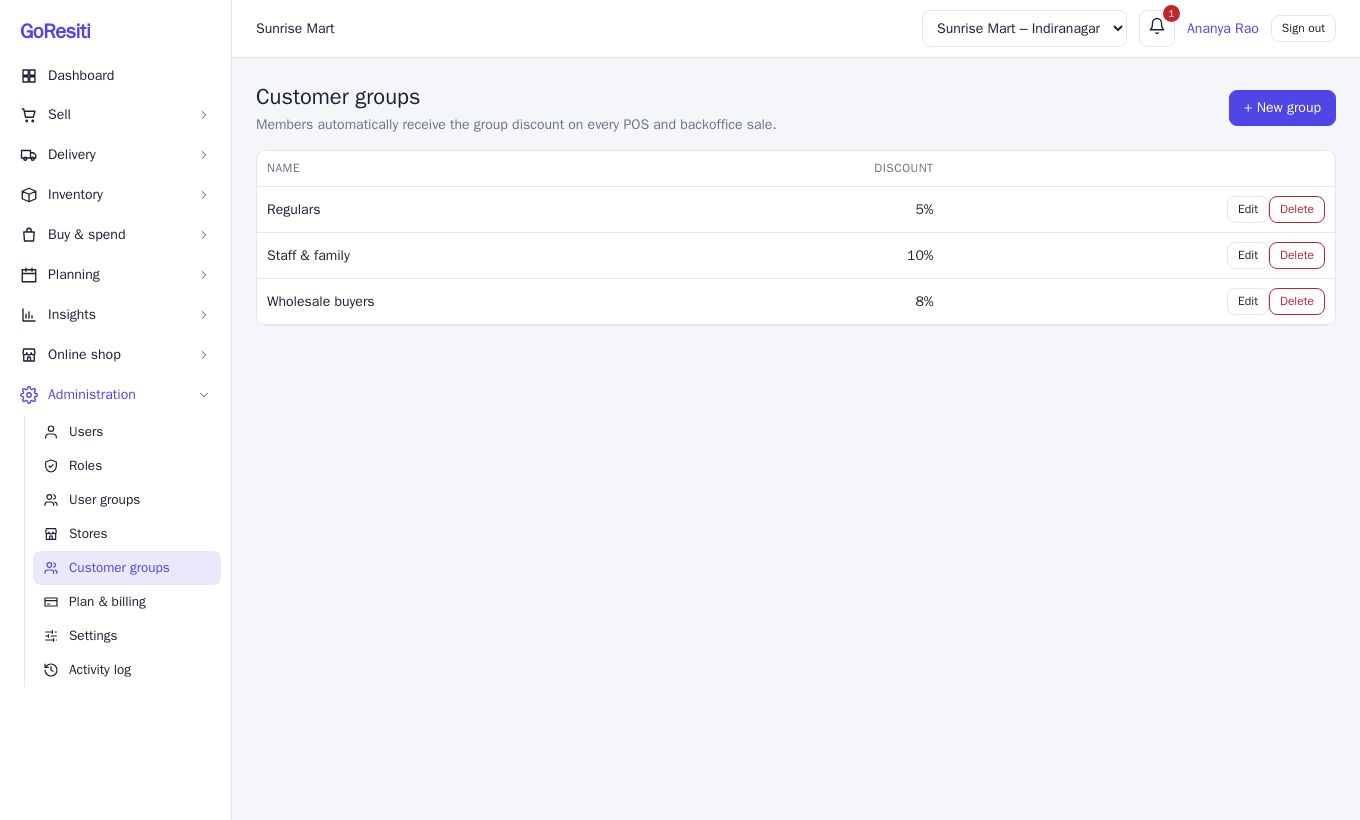
Open Administration → Customer groups, click + New group and enter a Name and Discount %. Then set the Customer group on each customer.
From then on, members receive the group discount on every POS and back-office sale. At the POS you see "Group discount n% applied". If a promotion is running at the same time, the customer gets whichever discount is higher. They are not combined. See Calendar and promotions.
#Loyalty points
If loyalty points are switched on (Settings → Loyalty, Growth plan and above), customers earn points as they pay, for example one point for every ₹100 spent. The Points column shows each balance. At the POS, picking the customer shows their points and the rupee value, and Redeem points uses them on the bill. The owner sets how many rupees earn a point, what a point is worth and the minimum points before redeeming. Voiding or returning a sale adjusts the points. See Point of sale (POS).
#Edit or delete
Click Edit to change details, group or notes. Delete removes the record, so use it only for mistakes such as a duplicate.