Sales attenders and incentives
Credit sales to floor staff who do not log in, and see how much incentive each has earned.
A sales attender is a member of staff who helps customers on the shop floor but does not use the software themselves. By attaching their name to each sale, you can reward them with an incentive. Attenders are available on the Growth plan and above (see Plan and billing).
Attenders have no login or password. The cashier does the billing and simply says who served the customer.
#The attenders list
Open Sell → Attenders.
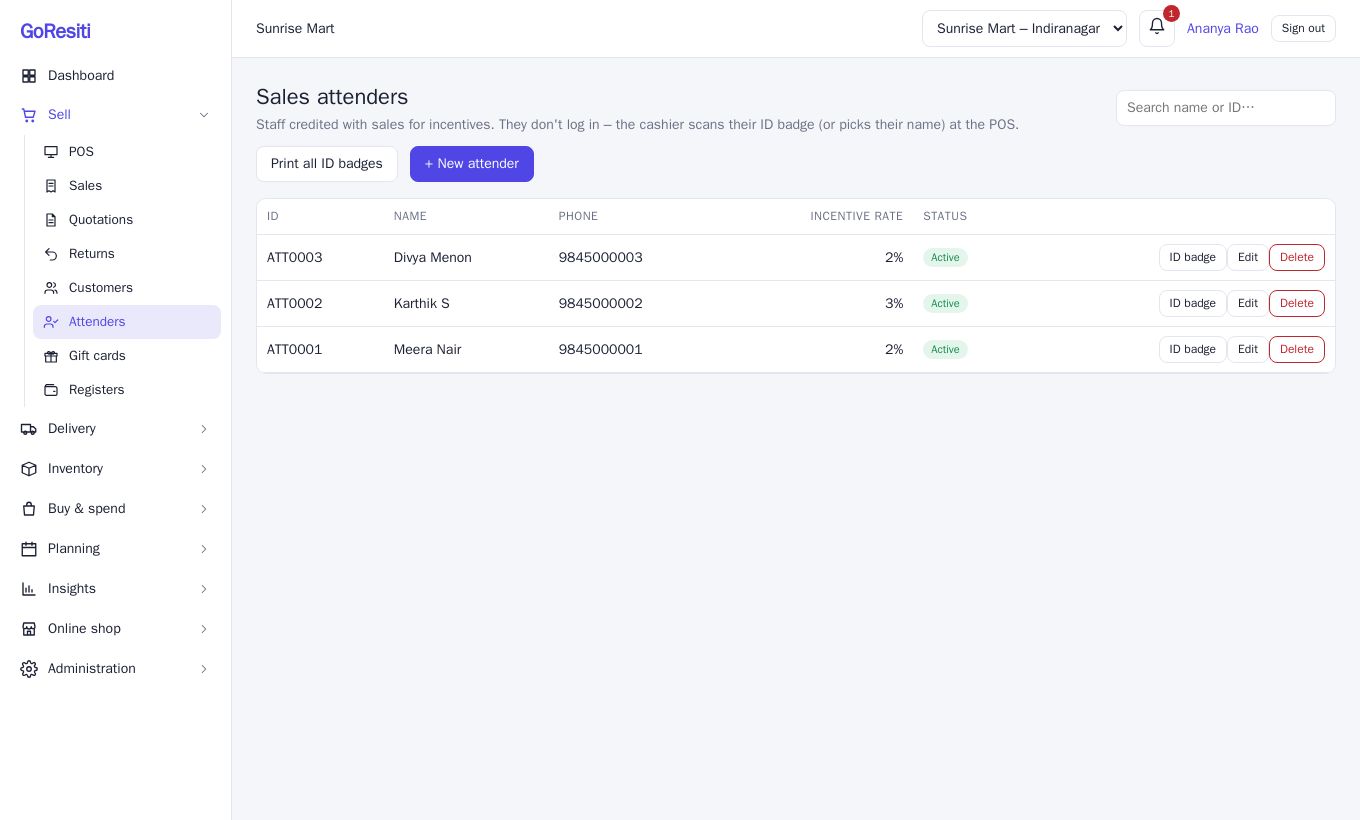
You see each attender's ID, Name, Phone, Incentive rate and Status. Use Search name or ID… to find one. Viewing needs attenders.view, and adding or changing needs attenders.manage.
#Add an attender
- Click + New attender.
- Enter the Name (required).
- ID / employee code can be left blank to get an automatic one such as ATT0001, or you can type your own, such as EMP-12 (letters, numbers, dash and underscore only).
- Add a Phone if you like.
- Enter Incentive % of net sales, or leave it blank to use the shop's default rate.
- Keep Active ticked and click Save.
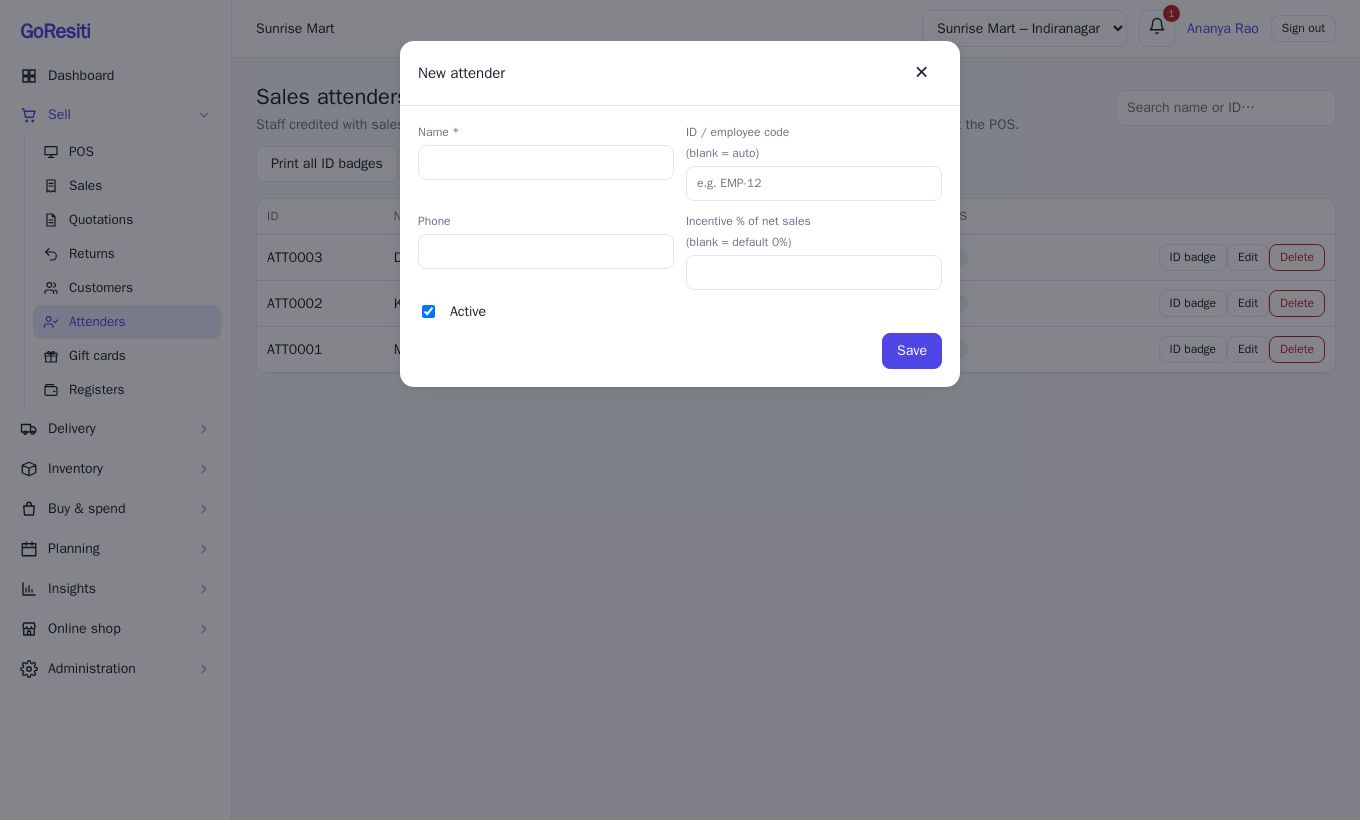
The default rate is set by the owner in Settings → Business as Default attender incentive (% of net sales excl. tax). The list shows "default (n%)" for attenders using it.
#ID badges
Click ID badge on a row to show a card with the attender's name and a barcode of their ID. Print all ID badges makes cards for every active attender. Print on card stock and laminate, then the cashier can scan the badge with the normal barcode scanner.
#Attach an attender to a sale
At the POS, use the Sales attender box under the customer:
- Scan the badge, or type the ID or name and press Enter.
- The sale then shows "Served by name · ID". Click ✕ to remove or change it.
You can also scan the badge in the main product search box, and the POS recognises it. For back-office invoices, the New sale window has a Sales attender drop-down. See Point of sale (POS) and Sales and invoices. The attender's name appears in the Sales list and on the sale detail page.
Only active attenders can be attached to a sale.
#How the incentive is worked out
The incentive is calculated on net sales excluding tax:
net sales = items sold − items returned, before GST
incentive = net sales × the attender's rate
The rate is saved on each sale at the time of selling. If you change an attender's rate next month, past sales keep the old rate. If a customer returns items, the incentive for that sale goes down in proportion.
#Edit, deactivate or delete
Click Edit to change the name, phone, rate or Active. Untick Active when someone leaves, so they stop showing in the POS. Delete removes an attender with no sales. If they already have sales, they are made inactive instead, so their history and incentives stay intact.
#Incentive reports
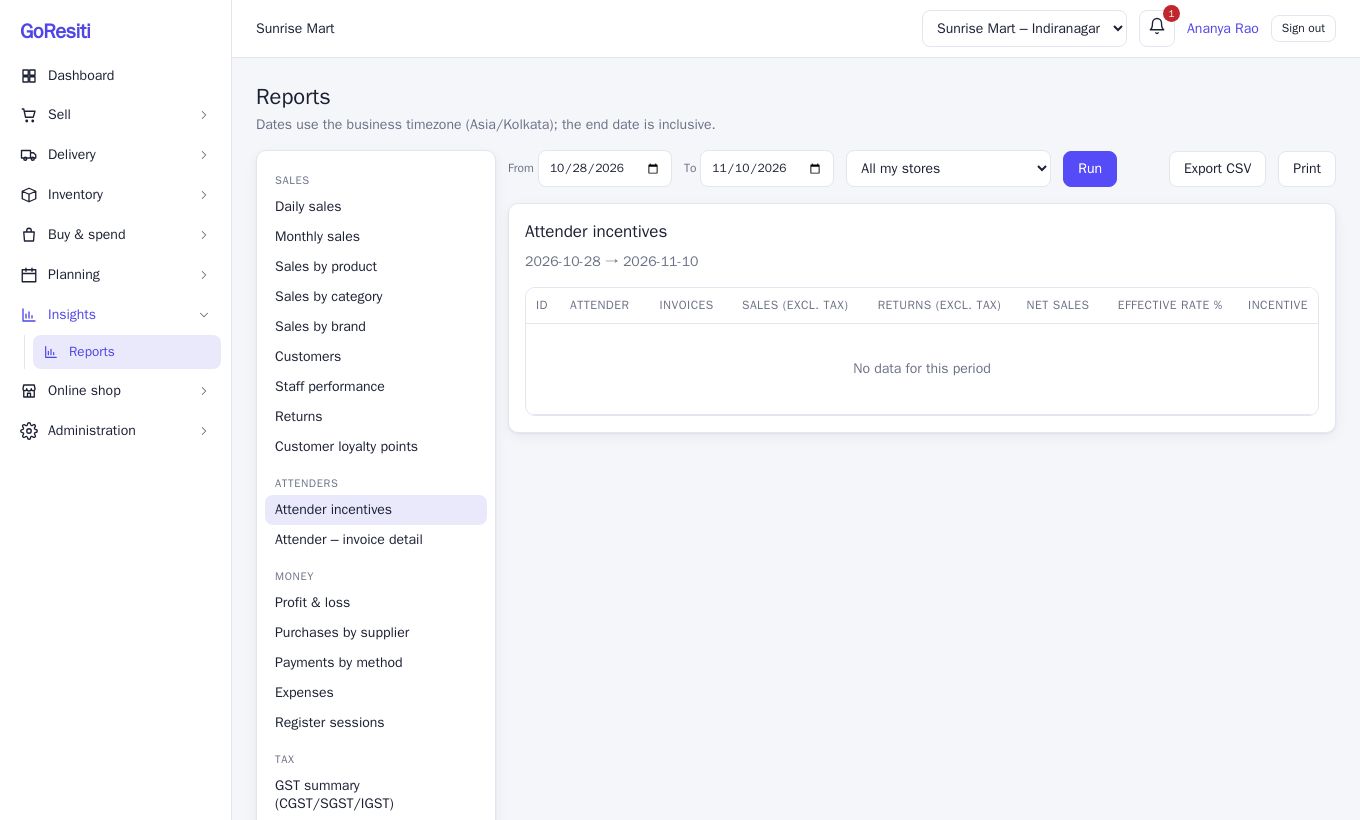
Under Insights → Reports, in the Attenders group:
- Attender incentives – for a date range, each attender's invoices, sales, returns, net sales, effective rate and incentive, with totals.
- Attender – invoice detail – choose one attender to see each invoice with its sales, returns, rate and incentive.
These need the full report suite (Growth plan and above). Use the From and To dates to match your payout period, usually a month. See Reports.